
NetSpeedDisplay overview
NetSpeedDisplay 1.0.0 is a free, lightweight Windows app that shows live download and upload speed on the taskbar, on the desktop and in a dashboard with a live graph.
Your internet speed, always in sight. NetSpeedDisplay is a lightweight Windows app that shows your live download and upload speed directly on the Windows taskbar, next to the clock. Version 1.0.0 adds an optional floating readout on the desktop, and there is a dashboard with a live graph and a tray icon whose tooltip shows the current speed.
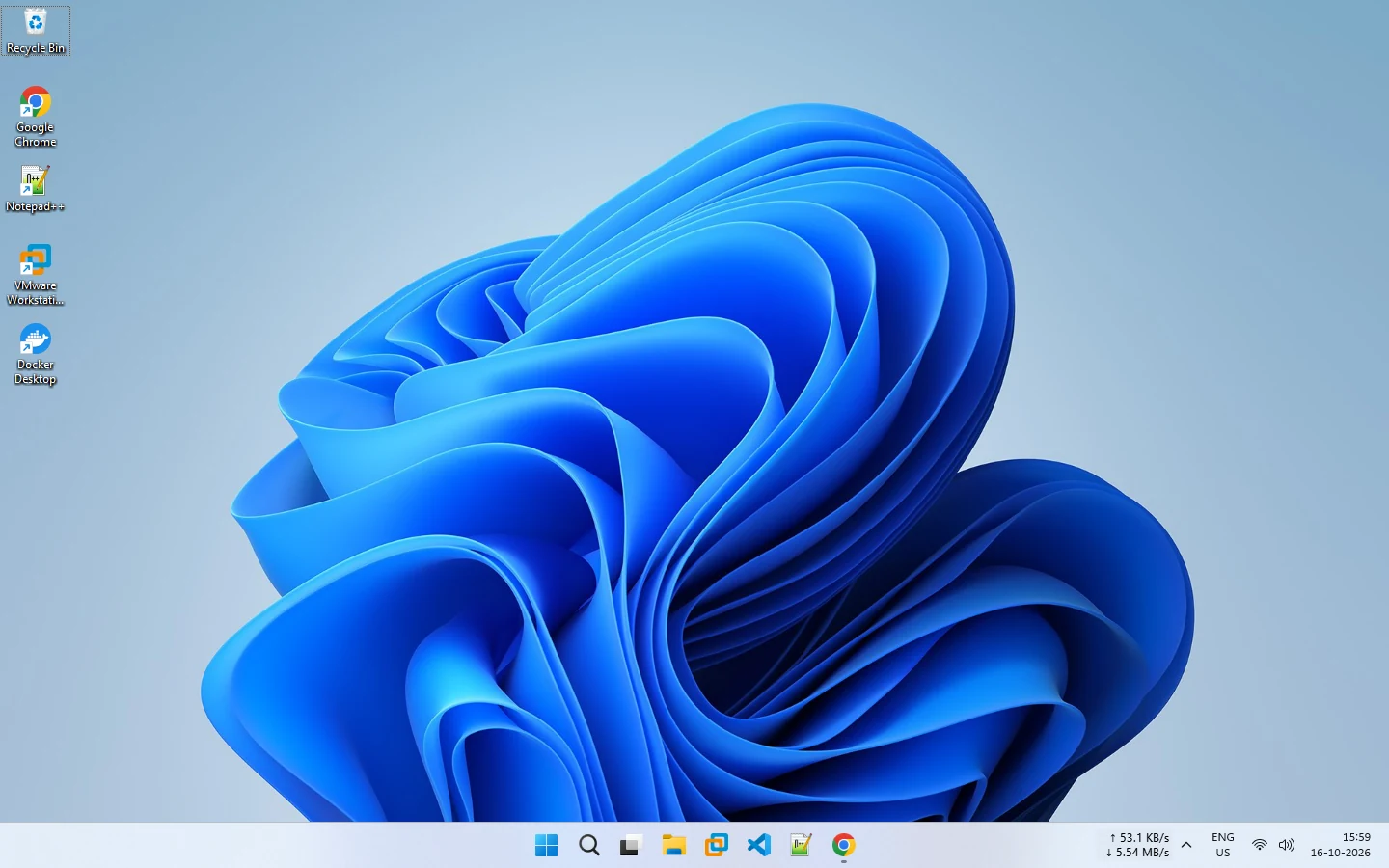
It is a native C++ program (one self-contained EXE), runs on 64-bit Windows 10 and 11 without administrator rights, needs no account and works completely offline: it never sends your data anywhere. You can install it or run it portable. It is free for personal use and inside your business or organisation under a proprietary freeware license; see license information.
Practical uses
- Watching an active download or upload
- Noticing network activity while you work or play
- Spotting a backup that is using your upload bandwidth
- Checking which network adapter is carrying your traffic
What it is not
It is not a speed test. It shows traffic on your PC now; it does not measure your plan’s maximum. See how to check network speed.
Explore the features, the screenshots or download.
Who it is for
- Anyone on calls or streams who wants to see upload at a glance
- Gamers who want to catch background downloads
- People with data caps who want daily totals (optional)
- IT helpers who need a light, portable tool. See for IT support and home labs
The main parts
| Part | What it does |
|---|---|
| Taskbar readout | Live upload and download next to the clock; stays visible when Start opens and never covers other taskbar items |
| Desktop readout | A floating readout you can drag anywhere, with its own layout, theme, opacity and text size |
| Dashboard | Large speed cards, a live graph (30 s to 1 h), average/min/max, session and usage totals |
| Tray icon and right-click menu | Speed tooltip; pause, adapter choice, lock position, start with Windows, exports |
| History (optional) | Daily totals with CSV export |
What it does not do
It does not run a speed test (planned), does not show per-program traffic and does not block or limit anything. See limitations. Use a speed test, Task Manager and Resource Monitor alongside it. See how to check network speed on Windows.
Where to go next
Getting started, features, screenshots, system requirements and the download page.
Related pages
First published 14 October 2026 · Last updated 23 November 2026. Found a mistake or something out of date? Email [email protected] and we will fix it. See how we write and test content.