
Best Net Speed Meters for Windows 11 and 10 (2026): Taskbar Speed Monitors Compared
Compare taskbar net speed meters for Windows 11 and 10: NetSpeedDisplay, TrafficMonitor, Net Speed Meter (Microsoft Store), NetSpeedMonitor and Task Manager.
Windows 11 and 10 do not show your internet speed on the taskbar by themselves, so most people install a small net speed meter. This page compares the options people search for most, what each is good at, and how to choose. We make NetSpeedDisplay, so we have tried to keep the comparison factual: check each tool’s own page for its latest version.
The short version
| Tool | Where it shows speed | Works on Windows 11 taskbar | Extras | Notes |
|---|---|---|---|---|
| NetSpeedDisplay | Taskbar, desktop, dashboard, tray tooltip | Yes, fits beside the clock and never covers icons | Live graph, daily usage, CSV, 22 languages | Free, no ads, makes no network connections, no admin rights |
| TrafficMonitor | Floating window or taskbar | Yes | CPU, RAM, temperatures, skins, plugins | Free, open source, portable |
| Net Speed Meter (Microsoft Store) | Floating meter that can be kept on the taskbar | Yes, as an overlay | Themes, unit choice | Free from the Store; paid “Plus” version exists |
| NetSpeedMonitor | Taskbar toolbar (desk band) | No | Traffic log | Old Windows 7/10 tool; relies on taskbar toolbars that Windows 11 removed |
| Task Manager | Its own window | No | Per-adapter graph | Built in, but only while the window is open |
What to look for
- Windows 11 support. Windows 11 dropped the taskbar “toolbar” (desk band) system that older meters used, which is why classic tools show nothing. See why NetSpeedMonitor does not work on Windows 11.
- It must not cover your icons. A readout that sits on top of the taskbar can hide tray icons when more apps open.
- Right adapter, no double counting. VPNs and virtual machines add extra adapters; adding them up can double your speed.
- Privacy. A meter only needs local counters. It should not need an account, ads or internet access.
- Size and startup. A meter runs all day, so it should be small and start quietly with Windows.
More detail: what to look for in a Windows internet speed meter.
NetSpeedDisplay
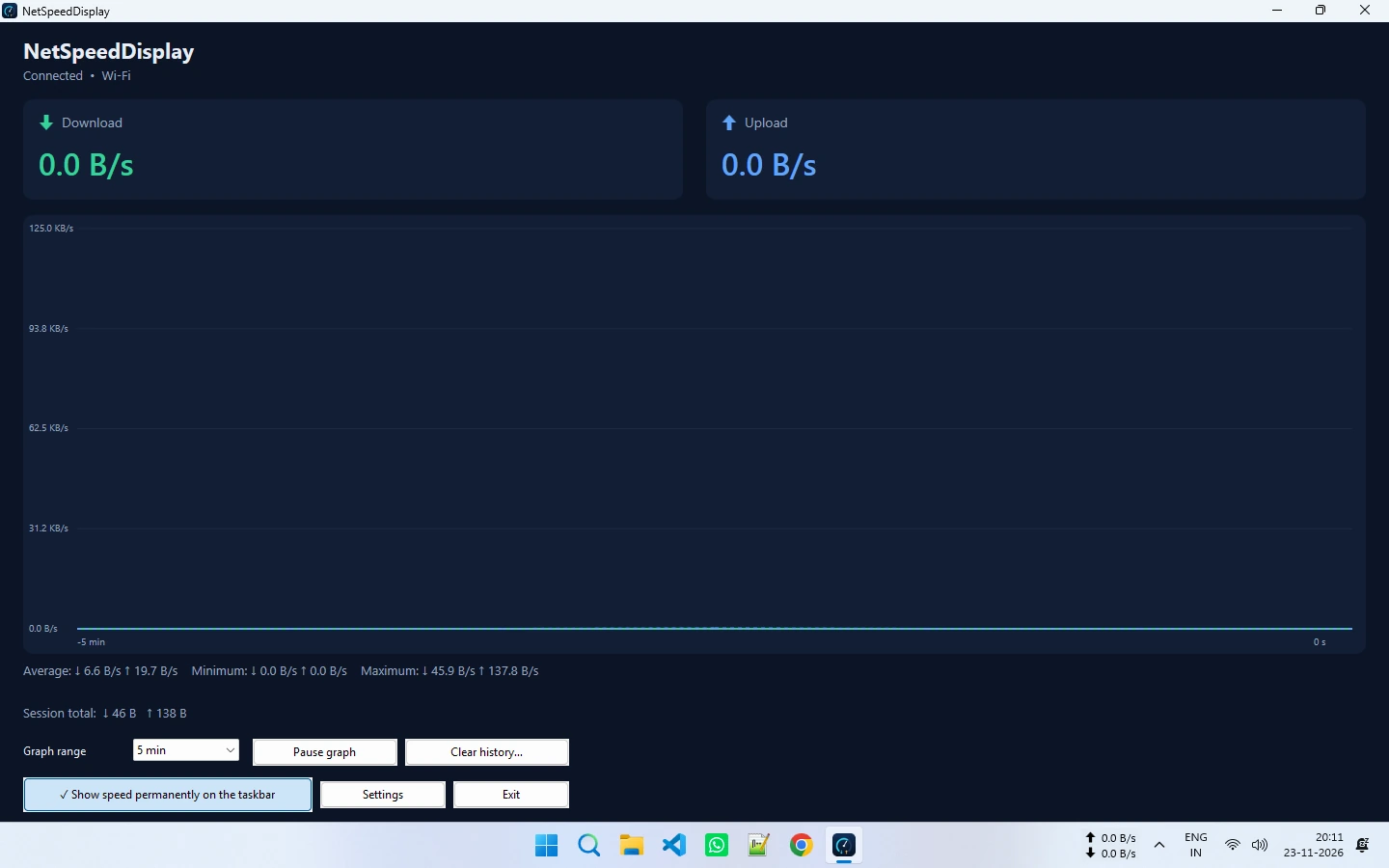
Best for: a clean, built-in-looking taskbar readout on Windows 11 or 10, with privacy.
- Readout next to the clock in the clock’s own font; follows light and dark mode
- Auto-fit: fits the taskbar height and moves aside when icons are added, so it never covers Start, apps, Widgets, tray icons or the clock
- Optional floating desktop readout, dashboard with a 30 s to 1 h graph, daily usage history and CSV export
- Picks the adapter Windows uses for the internet; ignores VPN and virtual adapters by default
- Native C++, about 0.36 MB portable; makes no network connections
- Does not show CPU or RAM, and has no built-in speed test yet
TrafficMonitor
Best for: people who want network speed plus CPU and RAM (and more through plugins) on the taskbar.
It is a popular free, open-source tool distributed from GitHub, often recommended as the replacement for NetSpeedMonitor. It has many skins and options, which also means more settings to learn. Because it is downloaded from GitHub rather than the Microsoft Store, Windows SmartScreen may warn on first run. Compare it in detail: TrafficMonitor alternative.
Net Speed Meter (Microsoft Store)
Best for: people who prefer installing from the Microsoft Store.
It starts as a small floating meter on the desktop; you can choose Keep in taskbar to place it over the taskbar. Settings cover units and colours. There is also a paid “Plus” app with extra features. As an overlay, it can need repositioning when the taskbar changes.
NetSpeedMonitor
The classic tool for Windows 7 and early Windows 10. It added a toolbar to the taskbar, a feature Windows 11 no longer has, so it does not display on Windows 11. Even on Windows 10 it often needed compatibility mode. See NetSpeedMonitor alternative for Windows 11.
Built-in Windows tools
- Task Manager → Performance → Wi-Fi/Ethernet shows live send and receive speed, but only while the window is open. See how to use Task Manager to see network usage.
- Settings → Network & internet → Data usage shows data used per app over 30 days.
- Perform speed test on the network icon (Windows 11, 2026 updates) runs a one-off speed test. See Windows 11 built-in speed test.
None of these keeps a live number on the taskbar.
Which one should you pick?
| You want | Pick |
|---|---|
| Just download/upload speed, looking native, nothing else | NetSpeedDisplay |
| Speed + CPU + RAM in one strip | TrafficMonitor |
| Install from Microsoft Store only | Net Speed Meter |
| A one-off speed check | Windows 11 Perform speed test |
| Per-app usage | Task Manager or Settings → Data usage |
Scorecard
| Feature | Why it matters |
|---|---|
| Taskbar display | Always visible |
| Upload and download | Complete picture |
| Unit choice | Match plan or file speeds |
| Adapter choice | Accurate with VPNs |
| Small size | Quiet on your PC |
| Privacy | Trust |
| OS support | It works for you |
| Portable | Flexible |
What to Look for in a Windows Internet Speed Meter
Not every speed meter is built the same. Some are tiny and quiet, others heavy and noisy. Use this checklist to pick one that you will actually keep running.
1. Where does it display?
A meter you have to open is no better than Task Manager. Look for one that shows speed where you already look: the taskbar or a small floating readout. Bonus points for letting you choose a layout and keep it on top.
2. Does it show download and upload separately?
Both matter. Upload is the early warning for call problems and backups.
8. Does it fit your taskbar?
Light and dark taskbars, text size and color matter for readability. Look for a match-taskbar option.
10. Is the license clear?
Free for personal and internal business use, commercial terms, and so on.
Scorecard
| Feature | Why it matters |
|---|---|
| Taskbar display | Always visible |
| Upload and download | Complete picture |
| Unit choice | Match plan or file speeds |
| Adapter choice | Accurate with VPNs |
| Small size | Quiet on your PC |
| Privacy | Trust |
| OS support | It works for you |
| Portable | Flexible |
Matching NetSpeedDisplay to the list
It checks each box above: taskbar and desktop readout, separate upload and download, bytes or bits with seven unit options, network interface menu, small size, no telemetry, support for Windows 10 and 11, portable program and a clear license. See the features page.
Lightweight Windows Monitoring Tools: Small, Fast and Free
A tool that watches your PC should not slow it down. Yet many monitoring utilities are large, run several background services and ask for accounts. If you want to see your system’s behavior without paying for it in speed, lightweight tools are the answer. Here is how to spot them.
Why lightweight matters
- Faster start-up. Tools that launch with Windows add to boot time.
- Less background load. Constant polling, animations and logging use CPU and memory.
- Smaller attack surface. Less code and fewer components mean fewer things that can go wrong.
- Easier to trust. A small program with a clear job is simple to understand.
A checklist for lightweight tools
Before installing a monitor, check:
- Download size. Is it measured in a few megabytes or hundreds?
- Extra software required. Does it need a runtime, a driver or a service?
- Background processes. Is it one process, or several?
- Start-up behavior. Can you choose whether it starts with Windows?
- Account or sign-in. If it needs one, ask why.
- Data use. Does it send data anywhere? See the privacy checklist.
- Portable option. Can you run it without installing, and remove it by deleting a folder?
Our article what a speed meter should never do goes deeper on the warning signs.
What the built-in tools cost
Windows tools such as Task Manager and Resource Monitor are free and light, but they only run when you open them. They are great for investigation. For something always visible, you need a small resident tool. Compare the two approaches in NetSpeedDisplay vs Windows tools.
How NetSpeedDisplay stays small
NetSpeedDisplay is a native Windows program with no runtime to install. Its download is about 2.4 MB as an installer or about 0.36 MB as a portable ZIP, and the portable program is a single file of well under 1 MB. It needs no Visual C++ Redistributable, no .NET and no drivers. It reads counters that Windows already keeps, has no telemetry, and does not need an account. See lightweight design.
You control how it behaves:
- Start with Windows is optional.
- Pause monitoring is in the tray menu.
- How often the readout refreshes can be set in Settings → General.
- You can run it as a portable program and delete it any time.
Keeping your PC lean in general
- Review Task Manager → Startup apps and disable what you do not need.
- Prefer one tool per job.
- Uninstall tools you no longer use. See uninstall for NetSpeedDisplay.
- Prefer portable tools for occasional use. Learn what a portable application is.
Frequently asked questions
Is there a free net speed meter for Windows 11? Yes. NetSpeedDisplay, TrafficMonitor and Net Speed Meter are all free to use.
Which net speed meter works on the Windows 11 taskbar? Tools built for Windows 11, such as NetSpeedDisplay and TrafficMonitor, work. NetSpeedMonitor does not.
Do net speed meters slow down the PC? A good one reads counters once a second and uses very little CPU. Check Task Manager if in doubt.
Can a net speed meter test my internet speed? No. It shows the traffic that is flowing now. Use a speed test for maximum speed. See speed test vs speed meter.
Do I need a graph? Nice to have. The dashboard offers one.
Do I need per-app traffic? Only for investigation. Use Task Manager.
Is a speed test built in? Not in NetSpeedDisplay.
Does a speed meter slow down my internet? No. A traffic monitor reads counters. It does not add traffic.
Is portable software safe? It can be, if it comes from the official source. Verify the checksum before running it. See installation.
Do I need administrator rights? The program itself does not require them.
Related pages
Net Speed Meter for PC and Laptop: Free Internet Speed Meter for Windows 11 and 10
Free net speed meter for PC and laptop. Show live download and upload speed on the Windows 11 or 10 taskbar. No account, no ads, no admin rights. 2.4 MB download.
TrafficMonitor Alternative for Windows 11: A Simpler Taskbar Net Speed Meter
Looking for a TrafficMonitor alternative? Compare it with NetSpeedDisplay: a free, native Windows 11 taskbar speed meter with auto-fit, no plugins and no network access.
NetSpeedMonitor Alternative for Windows 11 (64-bit, Free for Personal Use)
Looking for NetSpeedMonitor on Windows 11? Learn why the old toolbar approach is hard on newer Windows and use NetSpeedDisplay, a free taskbar speed meter, instead.
First published 23 November 2026 · Last updated 25 November 2026. Found a mistake or something out of date? Email [email protected] and we will fix it. See how we write and test content.