
Net Speed Meter for PC and Laptop: Free Internet Speed Meter for Windows 11 and 10
Free net speed meter for PC and laptop. Show live download and upload speed on the Windows 11 or 10 taskbar. No account, no ads, no admin rights. 2.4 MB download.
A net speed meter for PC shows how fast your internet is working right now: the download speed and upload speed, updated every second, in a small readout you can always see. On a laptop or desktop with Windows 11 or 10, the best place for it is the taskbar, next to the clock.
NetSpeedDisplay is a free internet speed meter for Windows that does exactly that.
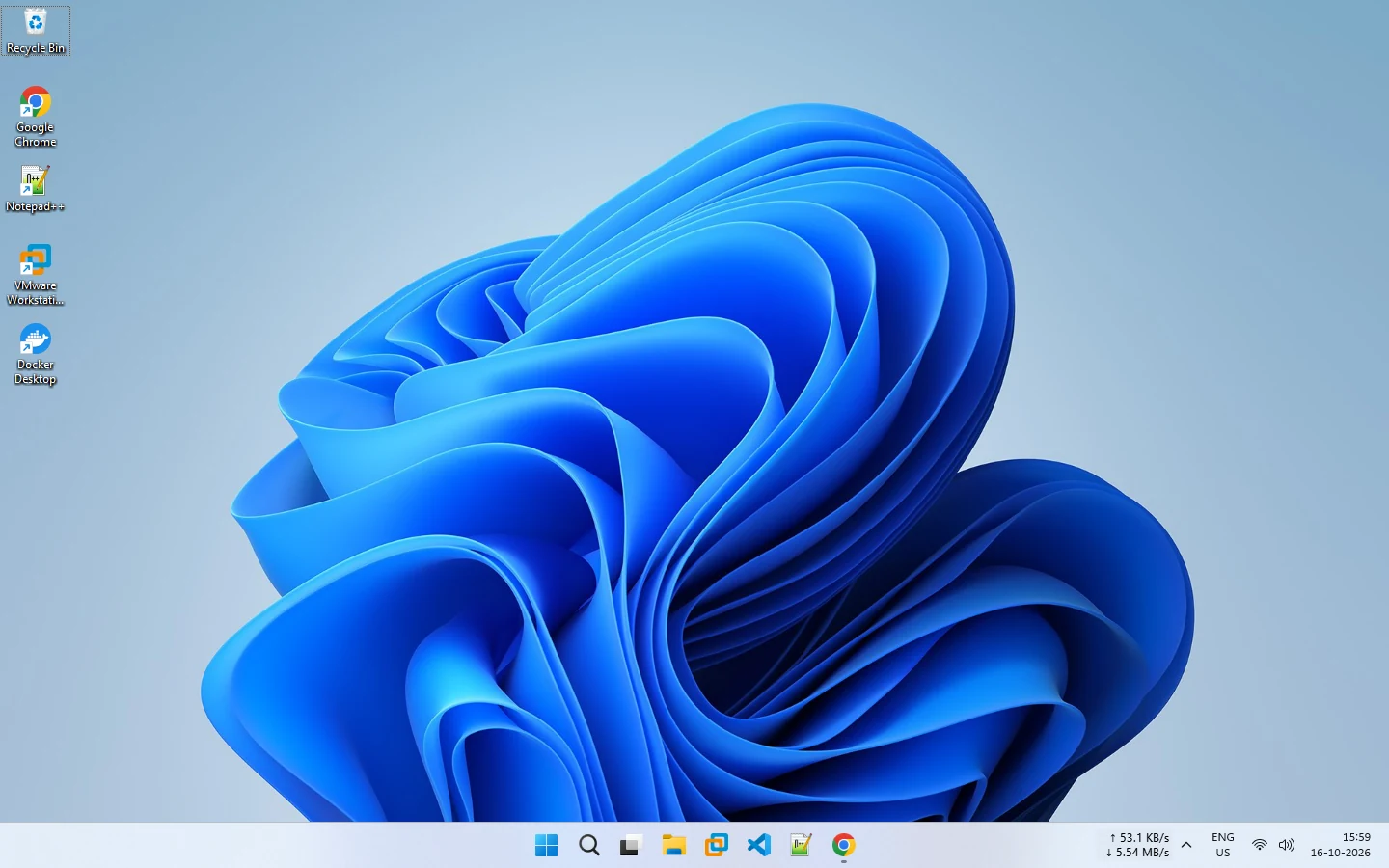
What you get
- Live upload and download speed on the taskbar, every second by default
- Looks like part of Windows: same font as the clock, white or black text for light and dark mode
- Stays visible when Start or Search opens, and never covers taskbar icons
- Optional floating speed meter on the desktop you can drag anywhere
- A dashboard with a live graph (30 seconds to 1 hour), average, minimum and maximum
- KB/s, MB/s or Mbps: bytes or bits, automatic or fixed units
- Optional daily data usage (today, last 7 days, this month) with CSV export
- 22 languages, including Hindi, Bengali, Tamil, Telugu, Marathi, Urdu and Arabic
Free download for PC
| Installer | Portable | |
|---|---|---|
| File | NetSpeedDisplay-1.0.0-Setup.exe |
NetSpeedDisplay-1.0.0-portable-x64.zip |
| Size | About 2.4 MB | About 0.36 MB |
| Windows | 10 and 11, 64-bit | 10 and 11, 64-bit |
| Admin rights | Not needed | Not needed |
| Account | None | None |
Go to the download page to get either file and its SHA-256 checksum.
How to set it up on a laptop or PC
- Download the installer from the official download page.
- Run it and choose Install for me only. Accept the license and, if you like, tick Start NetSpeedDisplay when I sign in to Windows.
- Look at the taskbar. Upload and download speed appear just left of the clock.
- Right-click the meter for options: show speed on the desktop, lock position, choose the network adapter, open Settings.
- In Settings → Numbers, untick Show bytes per second instead of bits if you want Mbps like your internet plan.
Full steps with screenshots: installation guide.
Net speed meter for laptops
Laptops switch between Wi-Fi, a phone hotspot and Ethernet. NetSpeedDisplay picks the adapter Windows actually uses for the internet and switches automatically when you change networks. VPN and virtual adapters are ignored by default, so your speed is never shown twice. When you lose the connection it shows No connection, which is different from a real 0.
On a phone hotspot or capped plan, switch on daily usage history to see how much data you used today and this month. See network speed monitoring on laptops and monitor data usage on Windows.
KB/s, MB/s or Mbps: which unit?
Internet plans are sold in Mbps (megabits per second). Browsers and game launchers show MB/s (megabytes per second). 1 byte = 8 bits, so 100 Mbps ≈ 12.5 MB/s.
- Compare with your plan → show Mbit/s
- Compare with downloads → show MB/s (the default)
Convert any number with the Mbps to MB/s converter.
Is it safe?
- The app makes no internet connections at all: no telemetry, ads, analytics or account
- It reads the byte counters Windows already keeps (the same source as Task Manager), and never looks at what you download
- No code injection into Windows Explorer; it runs as a normal user
- Every download has a SHA-256 checksum you can verify
See privacy and how to download a net speed monitor safely.
Frequently asked questions
Which is the best net speed meter for PC? It depends on what you need. For a clean taskbar readout on Windows 11 or 10 with no ads and no network connections, NetSpeedDisplay is a good choice. If you also want CPU and RAM on the taskbar, look at TrafficMonitor. See the comparison of net speed meters.
Is there a net speed meter for Windows 7? NetSpeedDisplay needs 64-bit Windows 10 or 11.
Does a net speed meter slow down my internet? No. It only reads counters Windows already keeps. It sends no test data.
Does it work on 32-bit Windows? No. It is a 64-bit (x64) program. Most PCs sold in the last ten years run 64-bit Windows; check under Settings → System → About → System type.
Can it show ping?
Not in version 1.0.0. A speed test with ping is planned. Use the Windows 11 taskbar speed test or ping in the meantime.
Download the free net speed meter
Related pages
Best Net Speed Meters for Windows 11 and 10 (2026): Taskbar Speed Monitors Compared
Compare taskbar net speed meters for Windows 11 and 10: NetSpeedDisplay, TrafficMonitor, Net Speed Meter (Microsoft Store), NetSpeedMonitor and Task Manager.
How to Check Internet Speed on a Laptop or PC (Windows 11 and 10): 5 Easy Ways
How to check net speed on a laptop or PC: Windows 11 Perform speed test, a browser test, Task Manager, Settings data usage, and a live speed meter on the taskbar.
How to Show Network Speed on the Windows 11 Taskbar (Net Speed Monitor)
Windows 11 cannot show network speed on the taskbar alone. Add a free net speed monitor for 64-bit Windows 11 with live download and upload speed.
First published 23 November 2026 · Last updated 23 November 2026. Found a mistake or something out of date? Email [email protected] and we will fix it. See how we write and test content.