
Windows 11 Built-in Speed Test on the Taskbar: How to Use "Perform Speed Test"
How to run the new Windows 11 internet speed test from the taskbar (Perform speed test / Test internet speed), what it measures, and how to keep live speed on screen.
Windows 11 can now start an internet speed test from the taskbar. If you right-click the network or Wi-Fi icon and see Perform speed test or Test internet speed, this guide explains what it does, why you may not have it yet, how to read the result, and what it does not do: it is a one-off test, not a live speed meter on the taskbar.
Quick answer
- Right-click the network (Wi-Fi or Ethernet) icon at the right end of the taskbar.
- Choose Perform speed test (some builds say Test internet speed).
- Wait about 20 to 30 seconds and read download, upload and latency (ping).
If the option is missing, install the latest Windows updates (see below), or open any speed test site in your browser instead.
Where the feature came from
Microsoft started rolling the taskbar speed test out to everyone in early 2026. It arrived with the optional February 2026 preview update (KB5077241) and then the March 2026 cumulative update, as a Perform speed test item on the network icon’s right-click menu.
In that version, the option is a shortcut to Bing’s speed test in your default browser, which uses Ookla’s test servers. Windows itself does not run the measurement; it simply opens the test page for you.
In October 2026 Microsoft began testing a browser-free speed test inside Quick Settings for Windows Insiders (Experimental channel, build 26340.9767). That version shows results inside Windows. It is in controlled rollout to a subset of Insiders, so most PCs do not have it yet.
Why you do not see “Perform speed test”
| Reason | What to do |
|---|---|
| Your PC is missing the 2026 updates | Settings → Windows Update → Check for updates, install everything, restart |
| You are on Windows 10 | The option is for Windows 11. Use a browser speed test |
| Rolling out gradually | Some features are switched on in stages. Check again after the next monthly update |
| Managed work PC | Your IT department may control which features appear |
How to read the result
A speed test gives you three numbers:
- Download (Mbps): how fast data can reach your PC. Compare it with your plan. Remember that providers sell megabits, while downloads show megabytes: divide Mbps by 8 for MB/s. See the Mbps to MB/s table.
- Upload (Mbps): how fast you can send data. It matters for video calls, cloud backups and streaming. See why upload is often lower.
- Latency or ping (ms): how long a round trip takes. Under about 50 ms feels responsive for games and calls. See ping quality.
Not sure if your number is good? Use the is my internet speed good? tool.
Speed test vs live speed meter
The taskbar speed test answers “how fast can my connection go right now?” It runs for a few seconds, uses data on purpose, and then stops. It does not keep your speed on screen.
A live speed meter answers a different question: “what is my PC actually downloading and uploading at this moment?” It shows the real traffic all day, without sending test data.
| Windows 11 speed test | Live speed meter (NetSpeedDisplay) | |
|---|---|---|
| Shows | Maximum speed during a short test | Real download and upload speed, every second |
| Runs | When you click it | All the time, on the taskbar |
| Uses extra data | Yes, the test transfers data | No, it only reads Windows counters |
| Needs internet access to a test server | Yes | No; the app makes no network connections |
| Good for | Checking your plan, Wi-Fi quality, a new router | Watching downloads, spotting background uploads, seeing drops as they happen |
Use both: run the test when you want a benchmark, and keep a meter visible to see what is happening between tests. Read speed test vs speed meter.
Keep live speed on the Windows 11 taskbar
Windows 11 still has no built-in setting to show internet speed on the taskbar permanently. NetSpeedDisplay adds it:
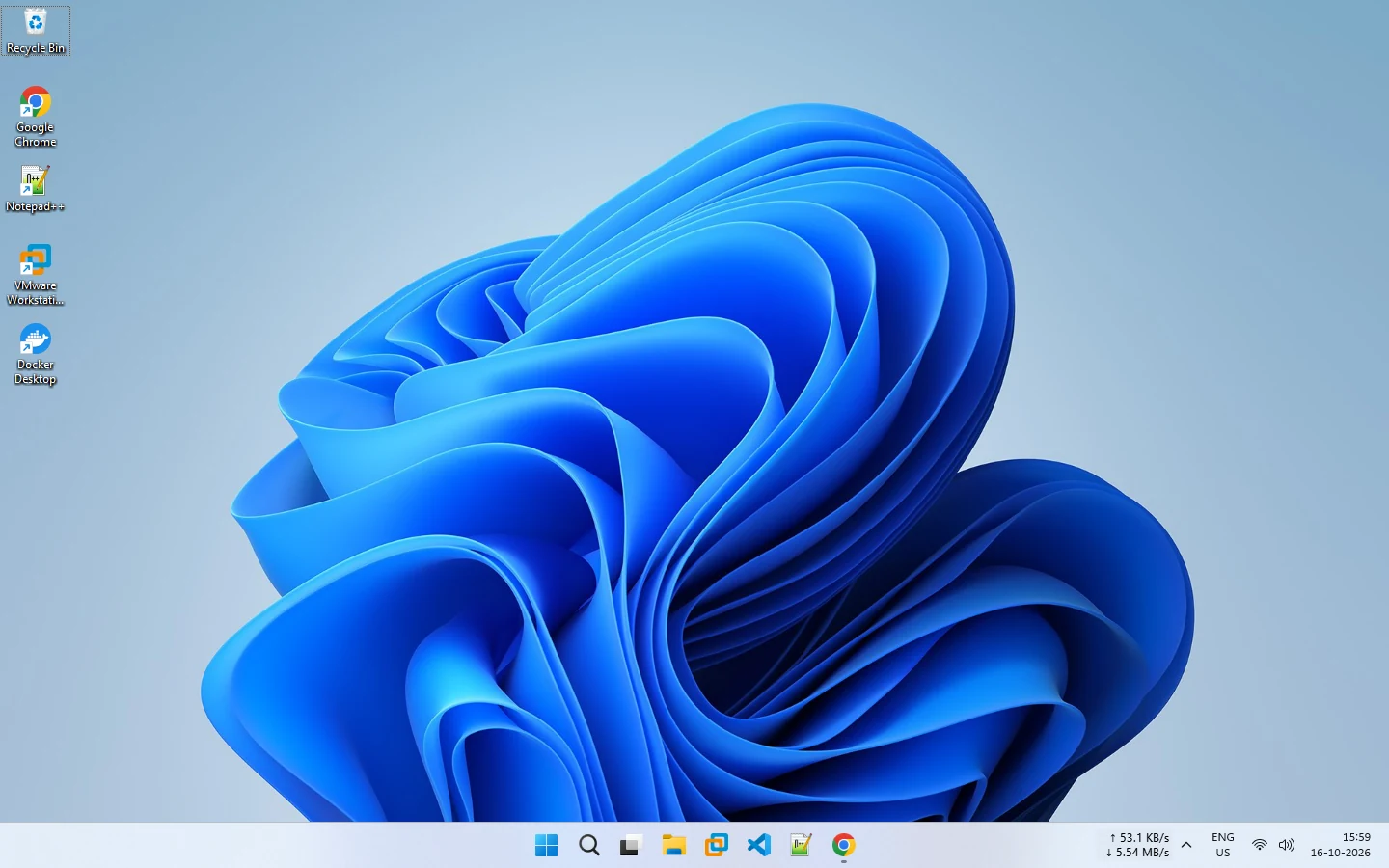
- Live upload and download speed next to the clock, in the same font as the Windows clock
- Stays visible when Start or Search opens, and never covers taskbar icons
- Free, no account, no admin rights, and no telemetry
Download NetSpeedDisplay or read how to show network speed on the Windows 11 taskbar.
Tips for an accurate test
- Pause big downloads, updates and cloud sync first. A live meter makes this easy: if the taskbar shows traffic while you are idle, something is still using the line. See hidden bandwidth thieves.
- Test on Ethernet once to learn your plan’s real speed, then test on Wi-Fi to see what the wireless link costs you. See Wi-Fi vs Ethernet speed.
- Turn off the VPN for a baseline test, then test again with it on.
- Test at different times of day. Evening slowdowns point to a busy provider network.
- Repeat three times and use the middle result.
Frequently asked questions
Does Windows 11 have a built-in internet speed test? Yes. Updated Windows 11 PCs show Perform speed test when you right-click the network icon. In most builds it opens Bing’s speed test in your browser. A browser-free version in Quick Settings is being tested with Insiders.
Is the Windows 11 speed test accurate? It uses the same kind of test server as popular speed test sites, so it is as accurate as any single browser test. Results vary with Wi-Fi signal, other traffic and server distance, so repeat it.
Can Windows 11 show internet speed on the taskbar all the time? Not by itself. The speed test runs once. For a permanent readout, use a taskbar speed meter such as NetSpeedDisplay.
Does the speed test use my data? Yes. A test downloads and uploads data on purpose, often tens or hundreds of megabytes on a fast line. Avoid running it repeatedly on a metered or mobile connection.
Is there a speed test in Windows 10? No taskbar option. Use a speed test website, or the Settings and Task Manager methods in how to check network speed on Windows.
Related pages
How to Show Network Speed on the Windows 11 Taskbar (Net Speed Monitor)
Windows 11 cannot show network speed on the taskbar alone. Add a free net speed monitor for 64-bit Windows 11 with live download and upload speed.
How to Check Network Speed on Windows 10 and 11
Three ways to check network speed on Windows: a speed test, Task Manager and a live taskbar meter. Learn which to use and how to read the numbers.
How to Check Internet Speed on a Laptop or PC (Windows 11 and 10): 5 Easy Ways
How to check net speed on a laptop or PC: Windows 11 Perform speed test, a browser test, Task Manager, Settings data usage, and a live speed meter on the taskbar.
First published 23 November 2026 · Last updated 23 November 2026. Found a mistake or something out of date? Email [email protected] and we will fix it. See how we write and test content.