
How to Check Internet Speed on a Laptop or PC (Windows 11 and 10): 5 Easy Ways
How to check net speed on a laptop or PC: Windows 11 Perform speed test, a browser test, Task Manager, Settings data usage, and a live speed meter on the taskbar.
Want to check your net speed on a laptop? There are two different questions you might be asking:
- How fast can my internet go? → run a speed test.
- How fast is my laptop downloading or uploading right now? → look at a live speed meter.
Here are five ways that work on Windows 11 and Windows 10, from quickest to most useful day to day.
1. Windows 11 taskbar speed test (fastest)
On an updated Windows 11 laptop:
- Right-click the Wi-Fi or network icon on the taskbar.
- Choose Perform speed test (or Test internet speed).
- Read download, upload and ping.
It opens a speed test in your browser on most PCs. Details and troubleshooting: Windows 11 built-in speed test.
2. A speed test website (any Windows version)
Open any well-known speed test website in your browser and press start. Close downloads and video first so the test is fair. Test once on Wi-Fi and, if you can, once with an Ethernet cable to see whether Wi-Fi is the bottleneck. See is slow internet your Wi-Fi or your provider?
3. Task Manager (live, built in)
- Press Ctrl + Shift + Esc.
- Open the Performance tab and click Wi-Fi or Ethernet.
- Watch Send (upload) and Receive (download).
This shows the real speed right now, in Kbps or Mbps, but only while Task Manager is open. Note: the Link speed shown in Wi-Fi details is the connection to your router, not your internet speed. See Task Manager Wi-Fi speed: link speed vs real speed.
4. Settings → Data usage (how much you used)
Settings → Network & internet → Data usage (Windows 11) lists how much data each app used in the last 30 days, per network. Use it on a phone hotspot or capped plan. See how to monitor data usage on Windows.
5. A live speed meter on the taskbar (always on)
The easiest everyday method is to see the speed all the time. NetSpeedDisplay puts live upload and download speed on the taskbar next to the clock:
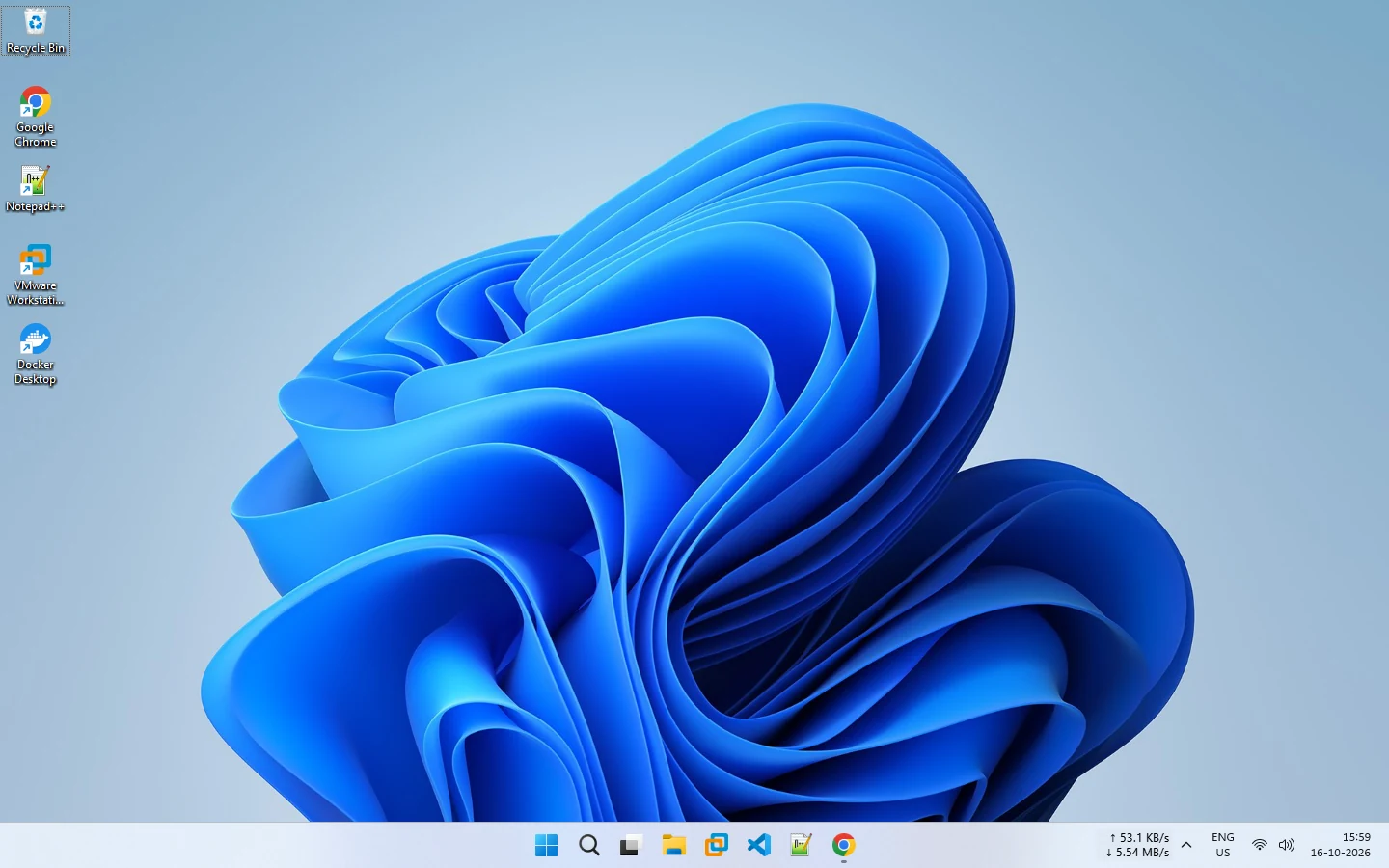
- Updates every second; no need to open anything
- Free, about 2.4 MB, no admin rights, no account
- Switches automatically between Wi-Fi, hotspot and Ethernet
- Optional daily data usage: today, last 7 days, this month
Download the free net speed meter · Net speed meter for PC and laptop
Which method should you use?
| Goal | Best method |
|---|---|
| Check my plan’s speed | Speed test (1 or 2) |
| See if a download is moving | Live meter (5) or Task Manager (3) |
| Find what is using my internet | Task Manager → Processes, sorted by Network |
| See how much data I used this month | Settings → Data usage (4) or the meter’s usage history |
What is a good speed for a laptop?
- Browsing and email: 5–10 Mbps
- HD video: about 5–8 Mbps per stream; 4K: about 15–25 Mbps
- Video calls: 3–4 Mbps up and down for HD
- Gaming: 15+ Mbps down, low ping matters more than speed
Use how much speed do I need? and what is a good internet speed.
Why is my laptop slower than my phone?
Common reasons: the laptop uses 2.4 GHz Wi-Fi while the phone uses 5 GHz, battery saver limits the Wi-Fi card, a VPN or cloud backup is running, or Windows Update is downloading. See why is internet slow on my PC but fine on my phone and how to increase internet speed on Windows 11.
Frequently asked questions
How do I check net speed on my laptop without any app? Use the Windows 11 Perform speed test option, a speed test website, or Task Manager’s Performance tab.
How can I see internet speed on the laptop taskbar? Windows does not do it natively. Install a taskbar speed meter such as NetSpeedDisplay.
Why does my laptop show 866 Mbps but downloads are slow? That number is the Wi-Fi link speed to the router, not your internet speed. Real throughput is usually much lower.
Is MB/s the same as Mbps? No. 1 MB/s = 8 Mbps. A 100 Mbps plan downloads at about 12.5 MB/s at best. Use the Mbps to MB/s converter.
Related pages
Windows 11 Built-in Speed Test on the Taskbar: How to Use "Perform Speed Test"
How to run the new Windows 11 internet speed test from the taskbar (Perform speed test / Test internet speed), what it measures, and how to keep live speed on screen.
How to Check Network Speed on Windows 10 and 11
Three ways to check network speed on Windows: a speed test, Task Manager and a live taskbar meter. Learn which to use and how to read the numbers.
Net Speed Meter for PC and Laptop: Free Internet Speed Meter for Windows 11 and 10
Free net speed meter for PC and laptop. Show live download and upload speed on the Windows 11 or 10 taskbar. No account, no ads, no admin rights. 2.4 MB download.
How to Increase Internet Speed on Windows 11 and 10 Laptops: 15 Fixes That Work
Increase internet speed on a Windows 11 or 10 laptop: stop background downloads, Delivery Optimization, metered settings, 5 GHz Wi-Fi, DNS, drivers and network reset.
First published 23 November 2026 · Last updated 23 November 2026. Found a mistake or something out of date? Email [email protected] and we will fix it. See how we write and test content.