
How to show internet speed on the Windows 11 taskbar
Windows 11 has no built-in speed readout on the taskbar. Here is how to add a live upload and download display with NetSpeedDisplay.
Windows 11 shows a Wi-Fi or Ethernet icon in the notification area, but it never tells you how fast data is moving. Task Manager can show it, but you have to open it and read a graph. A small taskbar readout puts the numbers in view all the time.
What you will see
NetSpeedDisplay places a compact readout beside the notification area with your current upload and download speed. Hover over it and a tooltip adds the totals sent and received since the program started.
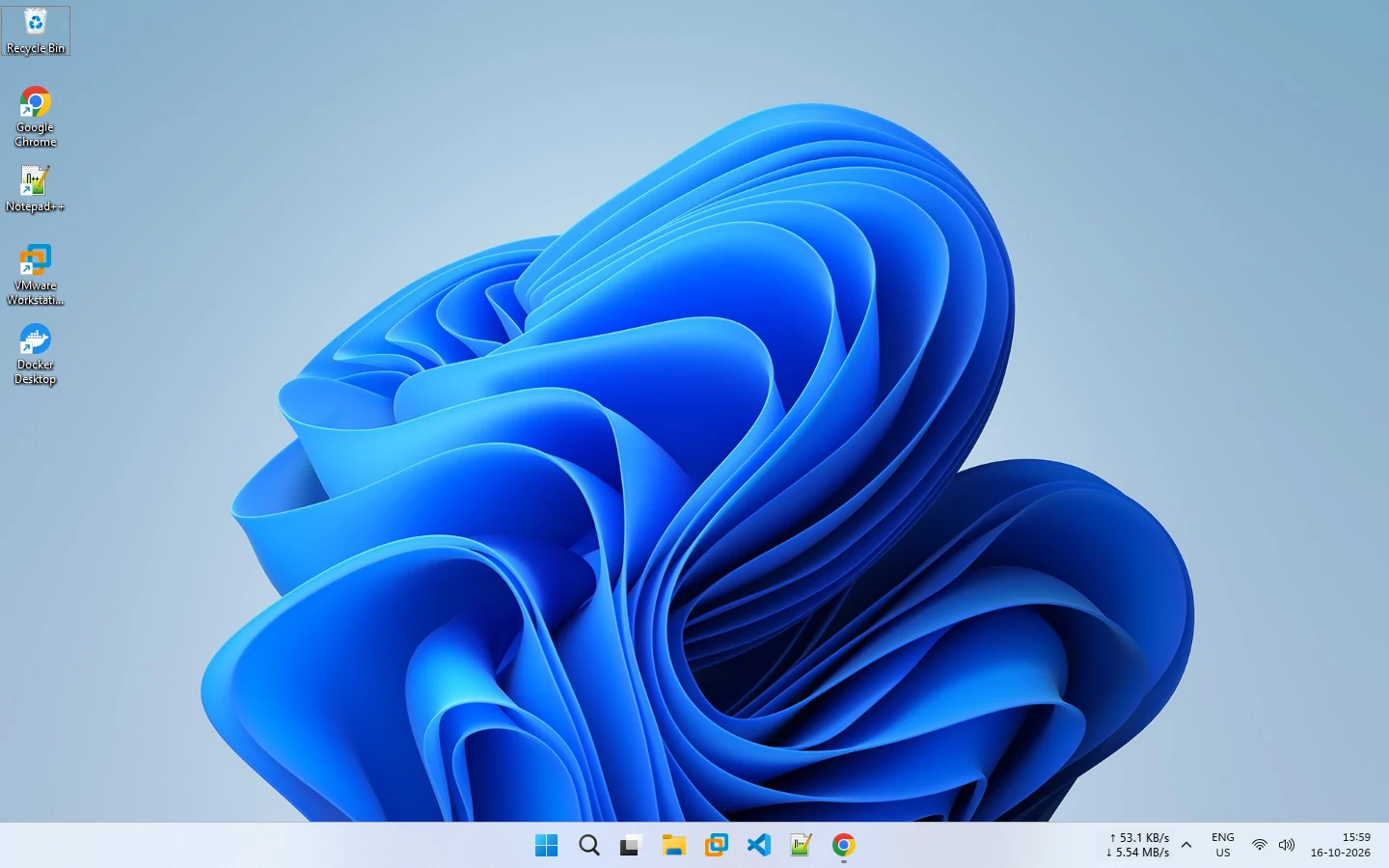
Steps
- Check the system requirements. Windows 11 is supported by both the installer and the portable program.
- Download the zip from the download page and compare the SHA-256 checksum with the one shown there.
- Extract the zip, then run the installer, or run
NetSpeedDisplay.exefrom any folder for portable mode. - Choose how it starts: when you sign in, as a background service, or manually. See startup settings.
- Look beside the notification area. The speeds appear there automatically.
If the readout does not appear
Open the right-click menu from the tray icon and make sure Show Taskbar Window is ticked. If your taskbar is crowded or set to hide, use the floating window instead. The taskbar display troubleshooting page lists more checks.
Make it readable
The text follows your light or dark Windows theme. You can also change the font, size, bold and colors, or let the background match the taskbar. The appearance guide explains each option.
What the numbers mean
The readout shows what your PC is transferring right now, not the maximum your connection can deliver. A short burst near your plan speed during a download is normal, and a number near zero means little is moving. For the difference between monitoring and testing, read how to check network speed on Windows.
Related pages
Internet speed in the Windows taskbar
Options for seeing network speed near the Windows taskbar.
Taskbar display
Show live upload and download speed next to the notification area and customize it from the right-click menu.
Taskbar display issues
What to try when the NetSpeedDisplay taskbar display is missing or hard to read.
Published 2026-10-17