
Startup option or background service not starting
If NetSpeedDisplay does not launch with Windows, check the startup mode, administrator rights and Windows startup settings.
You chose a startup option and the program does not appear after you sign in.
Check your choice
Open Startup in the right-click menu.
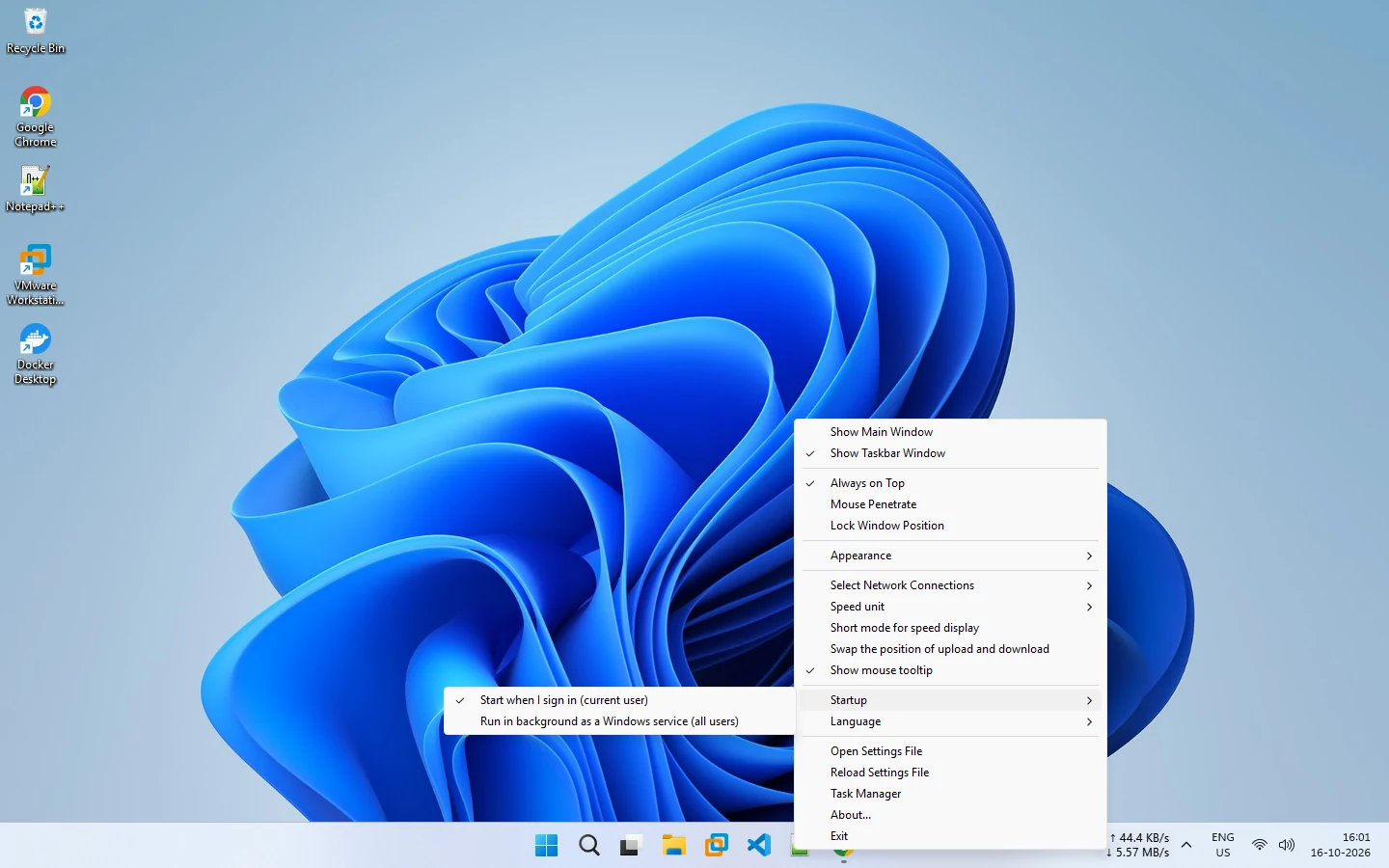
- Start when I sign in (current user) starts it for you only. No administrator rights are needed.
- Run in background as a Windows service (all users) needs administrator rights.
Steps
- Confirm the option is selected. Reopen the menu and look for the tick.
- Check Windows startup apps. In Settings → Apps → Startup, make sure the program is not switched off.
- Run as administrator for the service. If the service option fails, close the program and start it with administrator permission, then choose the option again.
- Check the file location. If you moved the program folder after choosing startup, choose the option again so the path is current.
- Try the other option. If the service does not work, use sign-in startup.
- Restart Windows and sign in again.
Portable copies
For a portable copy, keep the folder where it is after enabling startup. Moving it breaks the saved path.
Need more help?
Email support with your Windows version, whether you use the installer or portable, and the startup option you chose. See startup settings and run in the background as a Windows service.
Related pages
Startup settings
Start NetSpeedDisplay when you sign in, as a background service for every user, or manually.
Run in the background as a Windows service
Run NetSpeedDisplay as a Windows service for all users. See what it does, who needs it and why it requires administrator rights.
Published 2026-10-17