
Run in the background as a Windows service
Run NetSpeedDisplay as a Windows service for all users. See what it does, who needs it and why it requires administrator rights.
NetSpeedDisplay can start in two ways at sign-in. This page covers the service option.
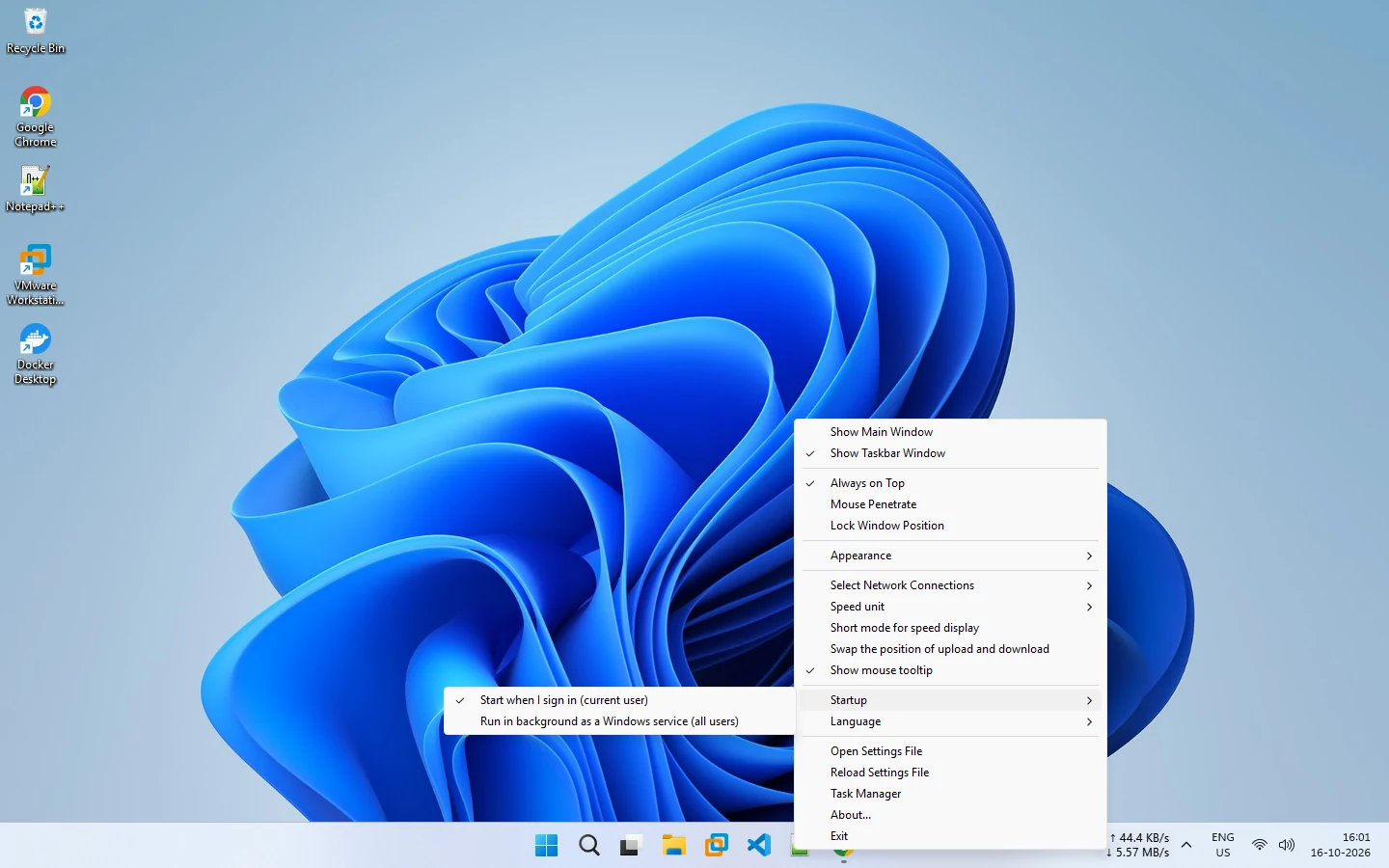
The two options
| Option | Who it applies to | Administrator rights |
|---|---|---|
| Start when I sign in (current user) | You only | Not needed |
| Run in background as a Windows service (all users) | Every user | Needed |
What the service does
The service option applies to every user on the PC, and it restarts the program if it stops. It is suited to shared computers, family PCs and machines where you always want the readout running.
When to choose it
- Several people use the same PC and all want the display.
- You want the program to come back by itself if it closes.
When to avoid it
- You are the only user. The sign-in option is simpler and does not need administrator rights.
- You use the portable program on a PC where you are not an administrator.
Switching
Open Startup in the right-click menu and choose the option you prefer. Switching to the service may prompt for administrator permission.
Troubleshooting
If the service does not start, see startup service not starting. For the full overview, read startup settings and start with Windows or as a service.
Related pages
Startup settings
Start NetSpeedDisplay when you sign in, as a background service for every user, or manually.
Start with Windows or as a service
Start NetSpeedDisplay when you sign in, or run a small background service that starts it for every user and restarts it if it stops.
Published 2026-10-17