
Startup settings
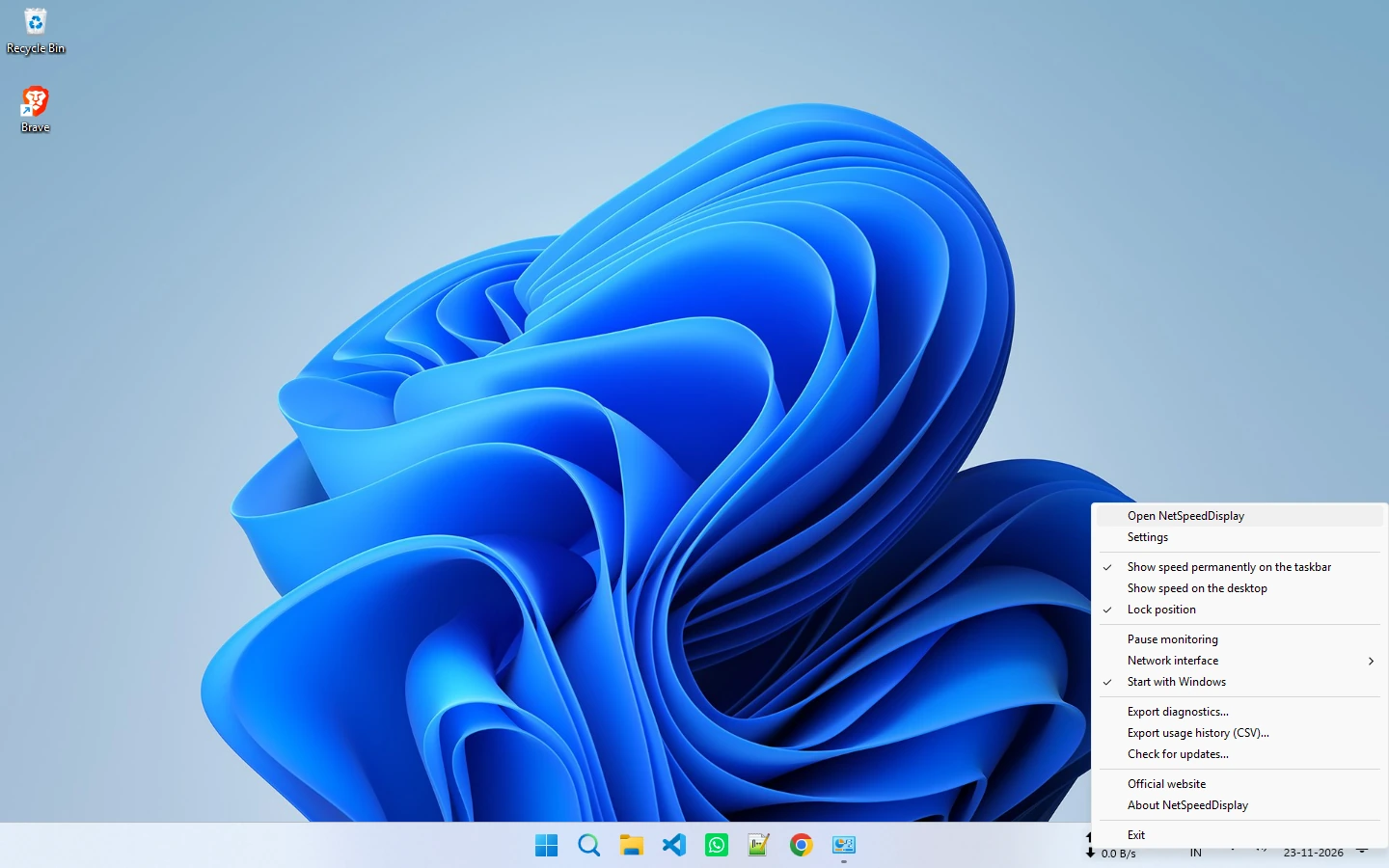
Start NetSpeedDisplay with Windows from the tray menu or the installer, or start it yourself. Startup is off until you turn it on.
NetSpeedDisplay starts with Windows only if you ask it to.
| Option | How | Notes |
|---|---|---|
| Start with Windows | Tick Start with Windows in the tray menu, or choose it in the installer | Adds a per-user startup entry for your account only. Your speed appears on the taskbar after you sign in. |
| Manual | Leave it unticked | Start the program yourself when you want it. |
Unticking the option, or uninstalling the program, removes the startup entry.
You can also manage startup apps in Windows under Settings → Apps → Startup.
There is no Windows service mode in this version.
Which startup option is right for you?
- Tick Start with Windows if you want the meter ready whenever you sign in, for example on a work PC where you take calls.
- Leave it unticked if you only want the meter sometimes, or you run the portable copy from a USB drive.
Managing startup in Windows
You can see and disable startup apps in Settings → Apps → Startup, or in Task Manager’s Startup apps tab. If you disable it there, the setting inside NetSpeedDisplay may still look ticked, so check both.
Portable program note
The startup entry points to the folder the program is in when you tick the option. If you move the folder later, untick and tick again.
Start with the dashboard hidden
When NetSpeedDisplay starts, it shows the speed on the taskbar (and on the desktop, if you turned that on). The dashboard window opens only if you want it. In Settings → Dashboard, tick Start with the dashboard hidden (tray only) so nothing pops up at sign-in, and Closing the window hides it to the tray so closing the dashboard keeps monitoring running.
Does starting with Windows slow down sign-in?
NetSpeedDisplay is a single native program of about 0.7 MB with no runtime to load, and it measures on a background thread that sleeps between samples. It is designed to have no noticeable effect on startup time. Windows shows its own estimate under Startup impact in Task Manager’s Startup apps tab.
It did not start at sign-in
- Check Start with Windows is ticked in the right-click menu.
- Check it is Enabled in Settings → Apps → Startup (or Task Manager → Startup apps).
- For the portable program, make sure the folder has not moved and the drive is connected.
- Still nothing? See program will not start.
See also portable mode and installation.
Download NetSpeedDisplay and choose how it starts.
Related pages
Installation and verification
Download, verify and install NetSpeedDisplay 1.0.0 on 64-bit Windows 10 or 11: the installer (no administrator rights) or the portable ZIP.
Uninstalling or removing
Remove NetSpeedDisplay from your PC, installed or portable, and optionally delete the settings and usage data it saved.
First published 14 October 2026 · Last updated 25 November 2026. Found a mistake or something out of date? Email [email protected] and we will fix it. See how we write and test content.