
Text hard to read on the taskbar
Fix a NetSpeedDisplay readout that blends into your taskbar or wallpaper. Change colors, background and font size for clear contrast.
If the taskbar readout is faint, tiny or blends into the background, you can fix it in a minute.
Quick fixes
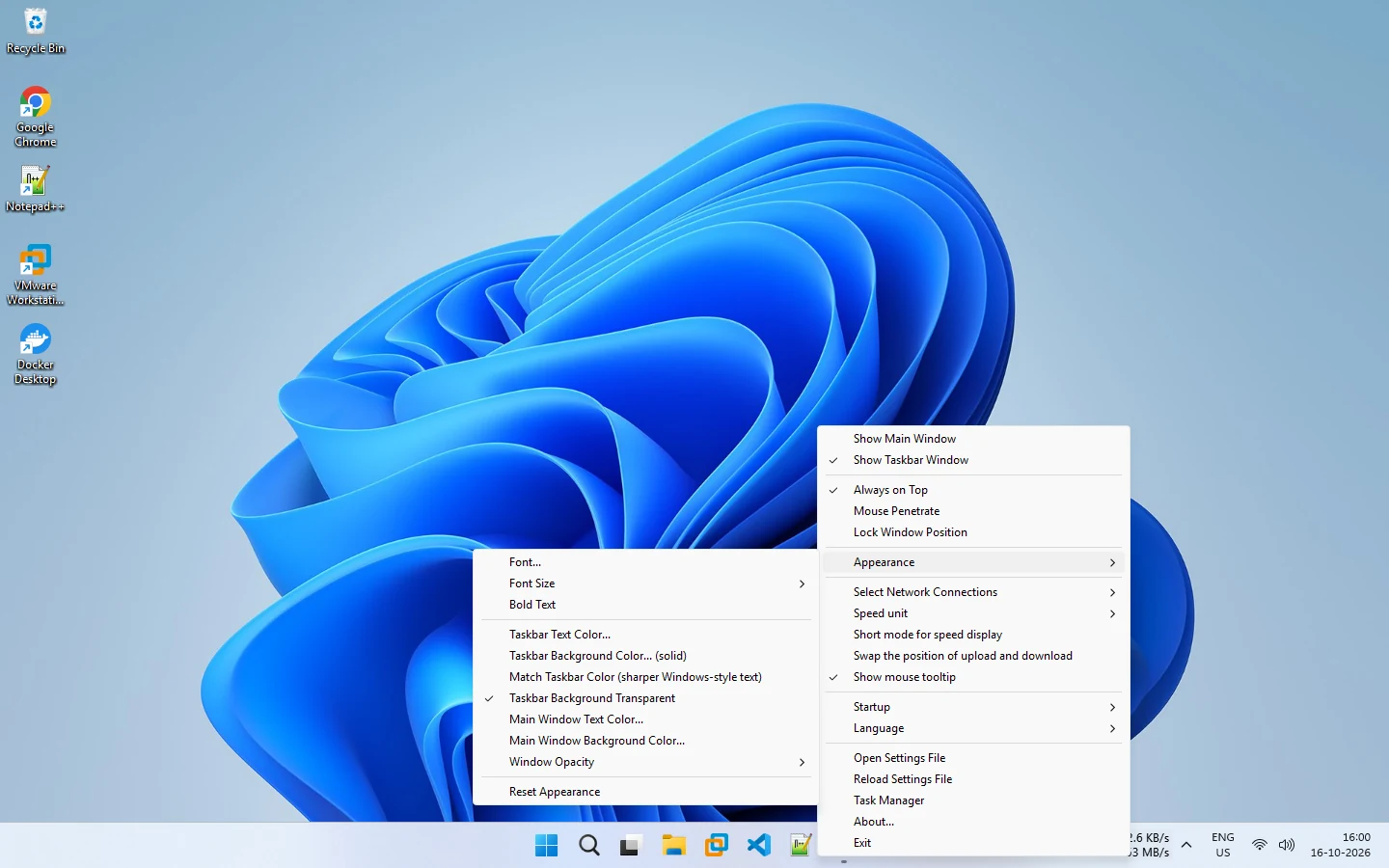
- Switch the background. In Appearance, try Taskbar Background Transparent or a solid Taskbar Background Color.
- Change the text color. Pick a color with strong contrast against your taskbar.
- Try Match Taskbar Color. This option aims for sharper, Windows-style text.
- Increase the font size or turn on Bold Text.
- Use Reset Appearance if you want to start over.
Why it happens
Taskbar colors can change with your Windows theme, accent color and transparency effects. A color that looked fine in light mode may disappear in dark mode.
For the floating window
Use Main Window Text Color and Main Window Background Color, and raise the window opacity if the window is too faint.
Still not right?
- Switch the short mode on or off to change the text length.
- Use the floating window instead of the taskbar readout.
- If you changed the Windows theme, restart NetSpeedDisplay.
More detail: light and dark taskbar support and appearance customization.
Related pages
Appearance customization
Change the font, size, bold, taskbar and main window colors and opacity from the Appearance menu of NetSpeedDisplay.
Light and dark taskbar support
NetSpeedDisplay text follows your Windows light or dark taskbar so the speed stays readable. Here is how it works and how to tune it.
Published 2026-10-17