
Appearance customization
Change the desktop readout theme, layout and opacity, and the taskbar text, unit and order, from the NetSpeedDisplay Settings dialog.
Appearance options live on three tabs of the Settings window: Taskbar, Desktop and Dashboard. Each readout has its own theme, so the taskbar readout, the desktop readout and the dashboard can look different.
Taskbar tab
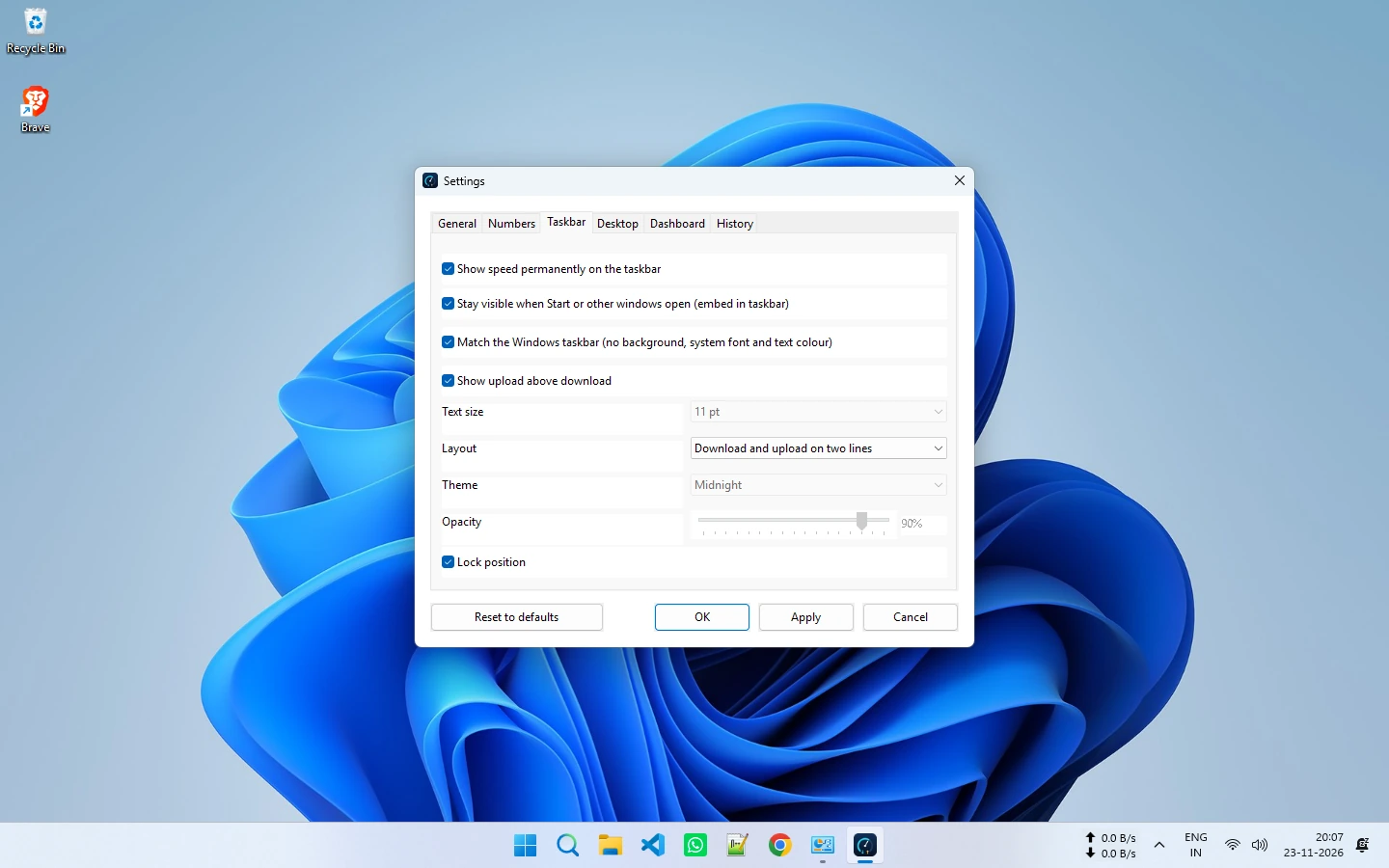
- Match the Windows taskbar (on by default): no background box, the same system font and size as the Windows clock, and white or black text that follows light and dark mode. While it is on, Text size, Theme and Opacity are unavailable.
- Untick it for a themed panel: a rounded, translucent panel with your chosen theme, opacity and text size.
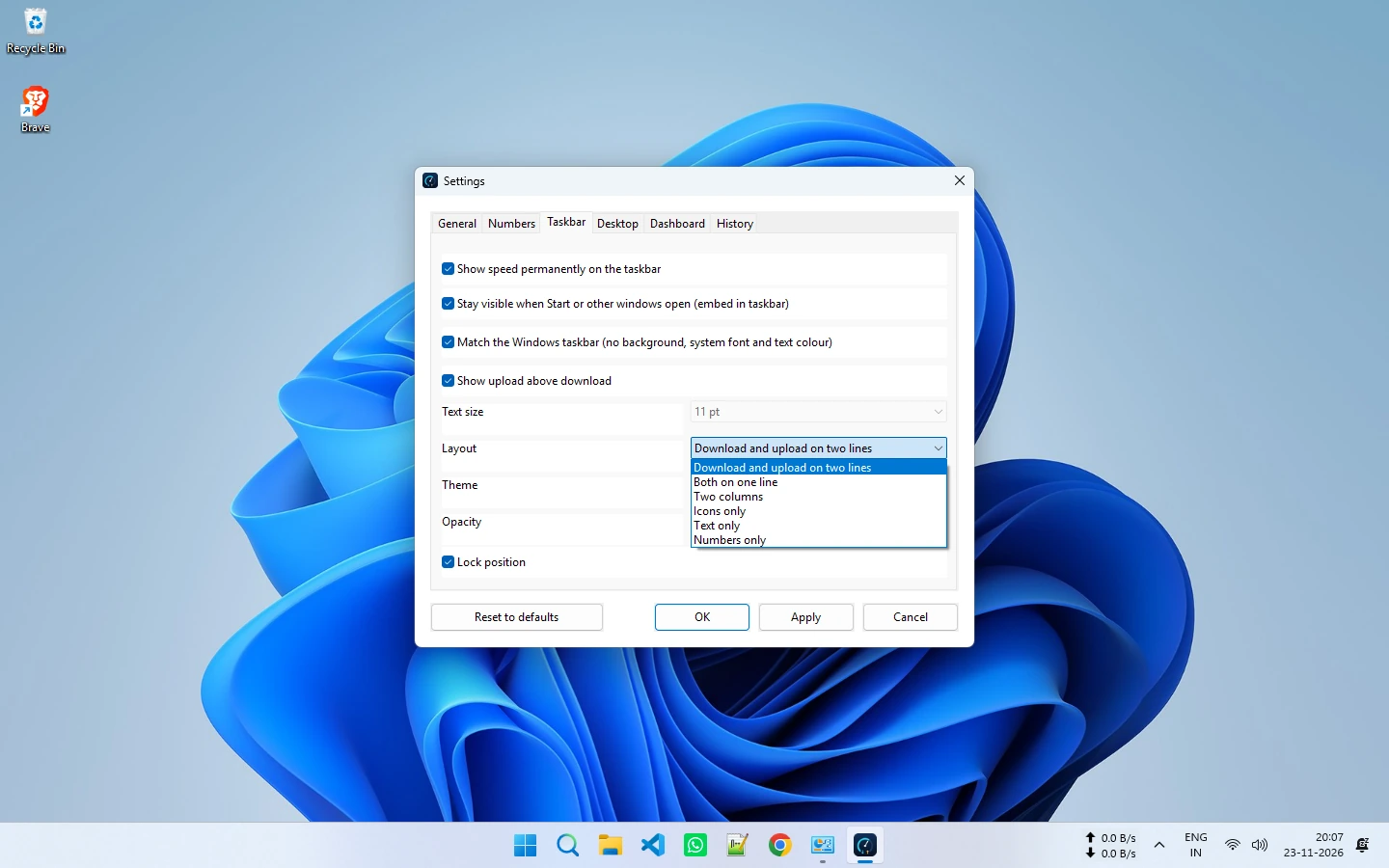
- Layout: the same six layouts as the desktop readout. Two lines is the default.
- Show upload above download swaps the order of the two lines.
- Stay visible when Start or other windows open keeps the readout embedded in the taskbar.
- Lock position stops accidental dragging.
Desktop tab
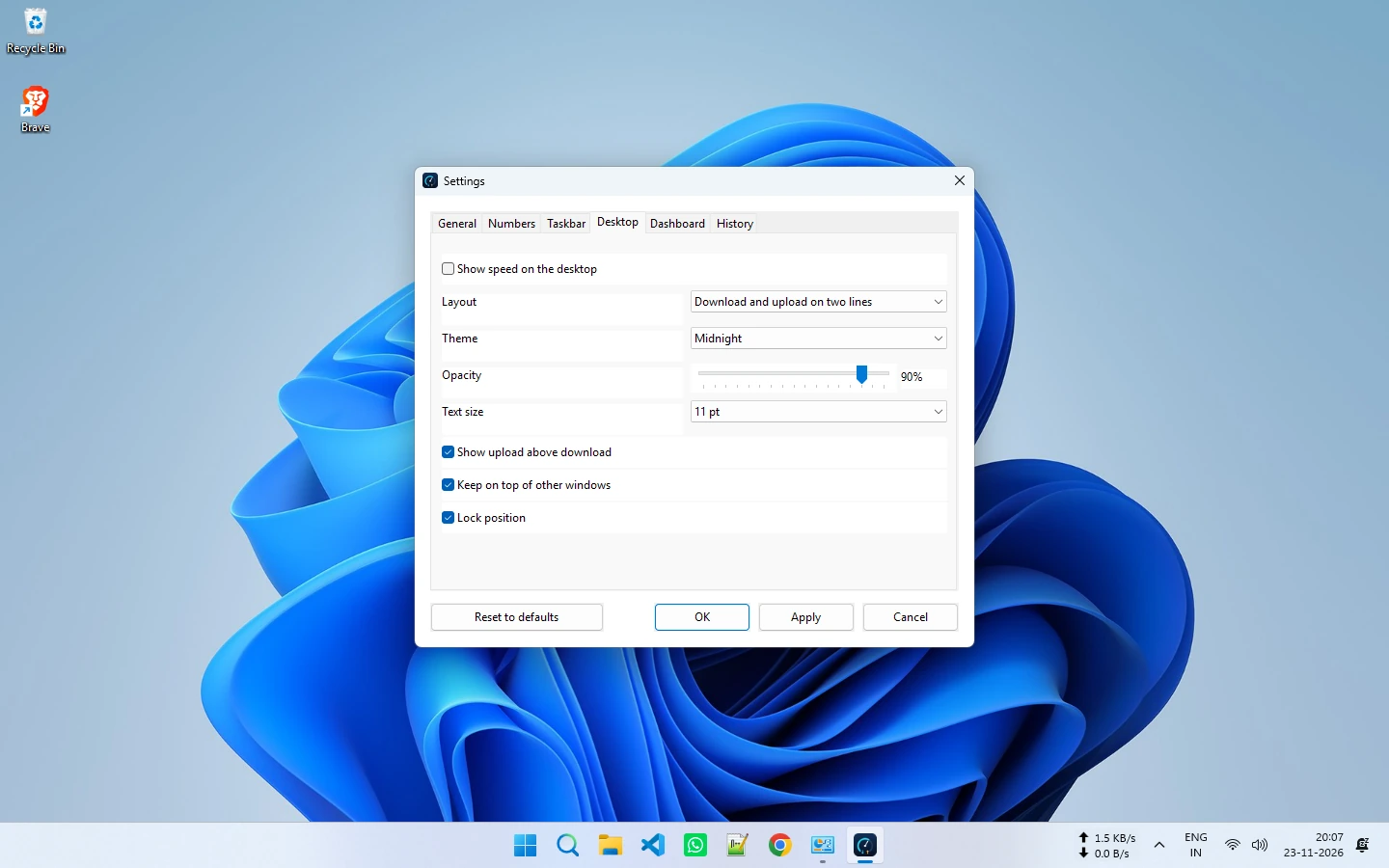
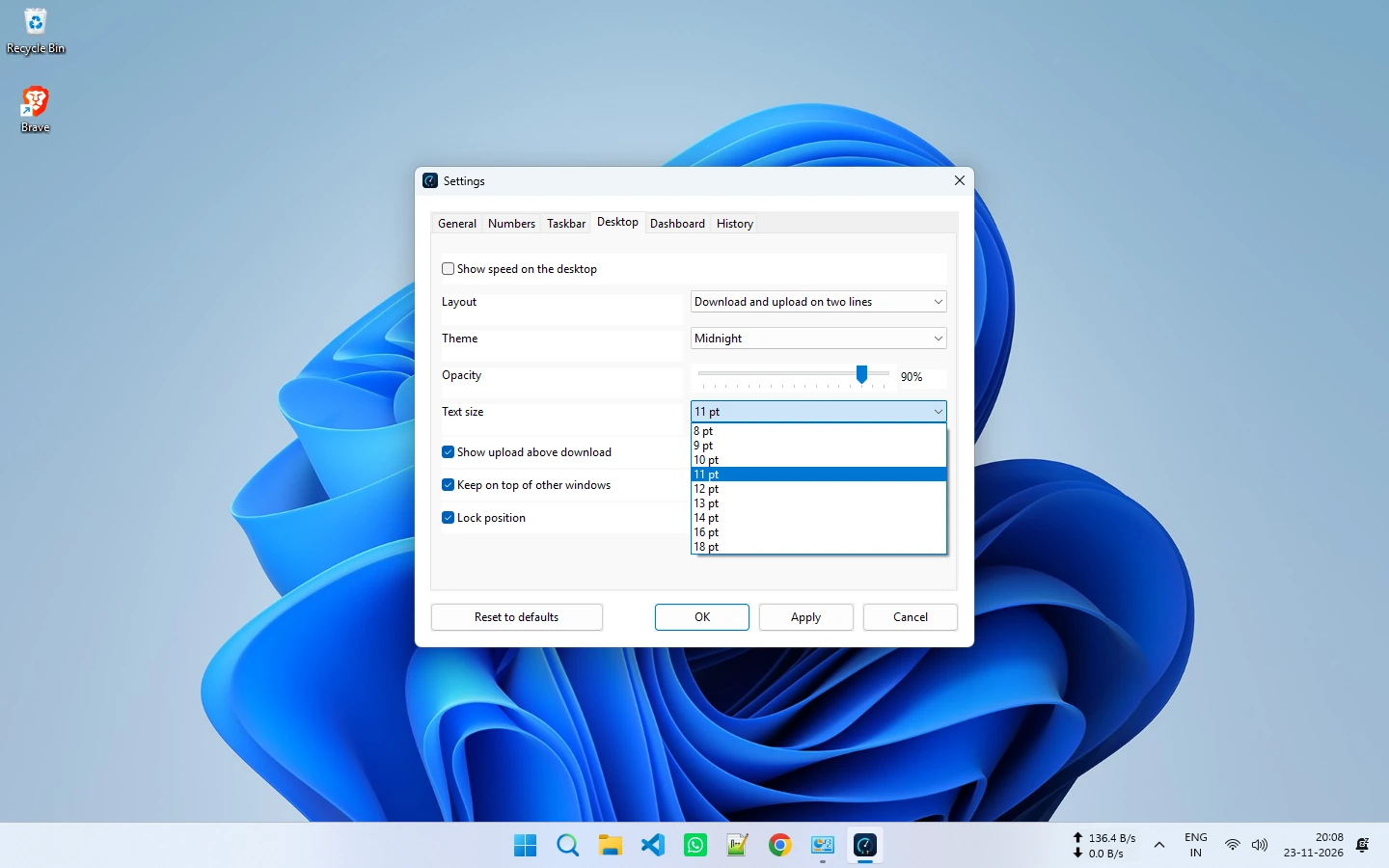
- Show speed on the desktop turns the floating readout on.
- Layout: download and upload on two lines, both on one line, two columns, icons only, text only, or numbers only.
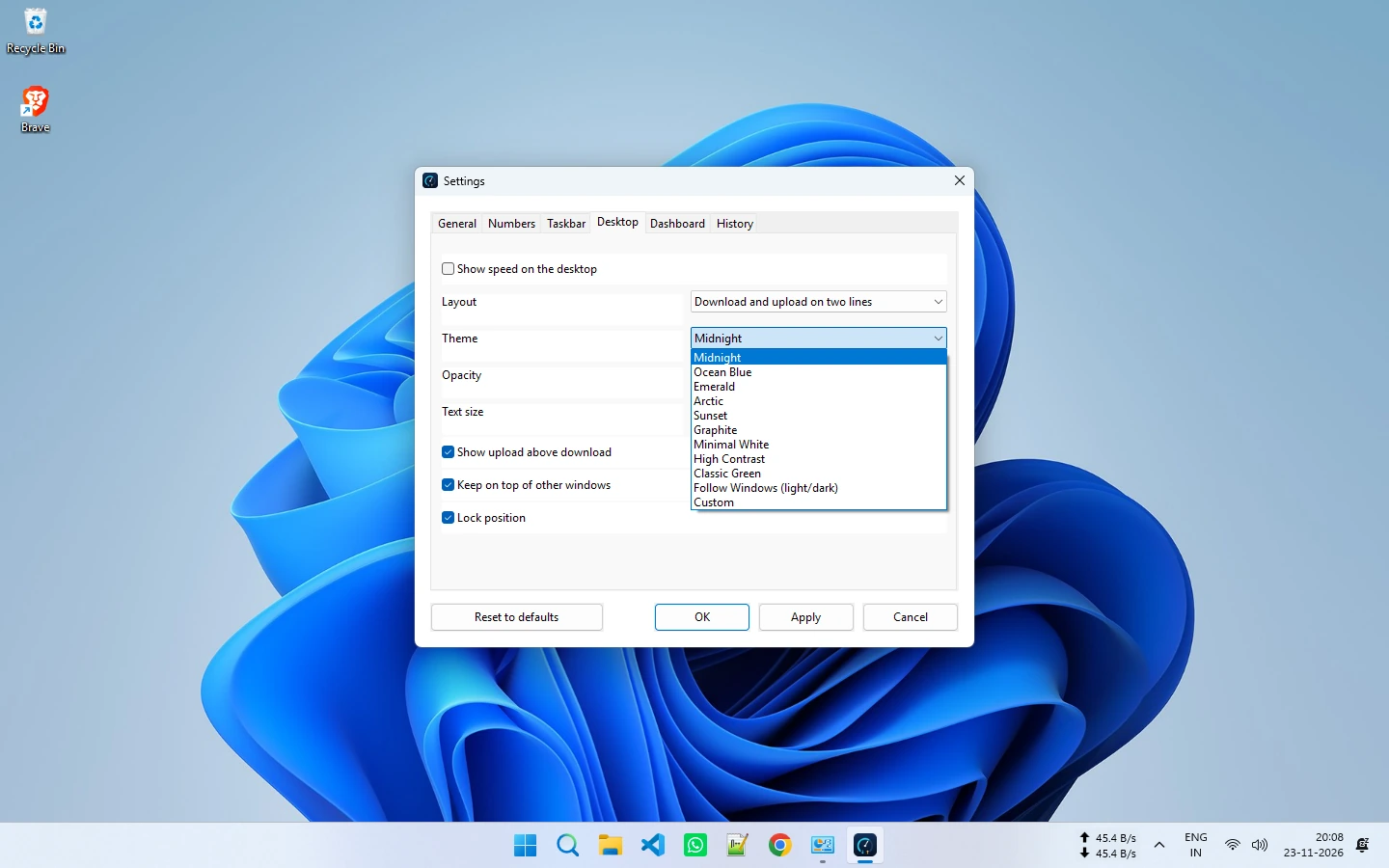
- Theme: Midnight, Ocean Blue, Emerald, Arctic, Sunset, Graphite, Minimal White, High Contrast, Classic Green, Follow Windows (light/dark) or Custom.
- Opacity: 20 to 100% (90% by default). Text size: 8 to 18 pt.
- Show upload above download, Keep on top of other windows and Lock position.
Dashboard tab
The dashboard has its own Theme, plus Keep the dashboard on top, Closing the window hides it to the tray and Start with the dashboard hidden (tray only).
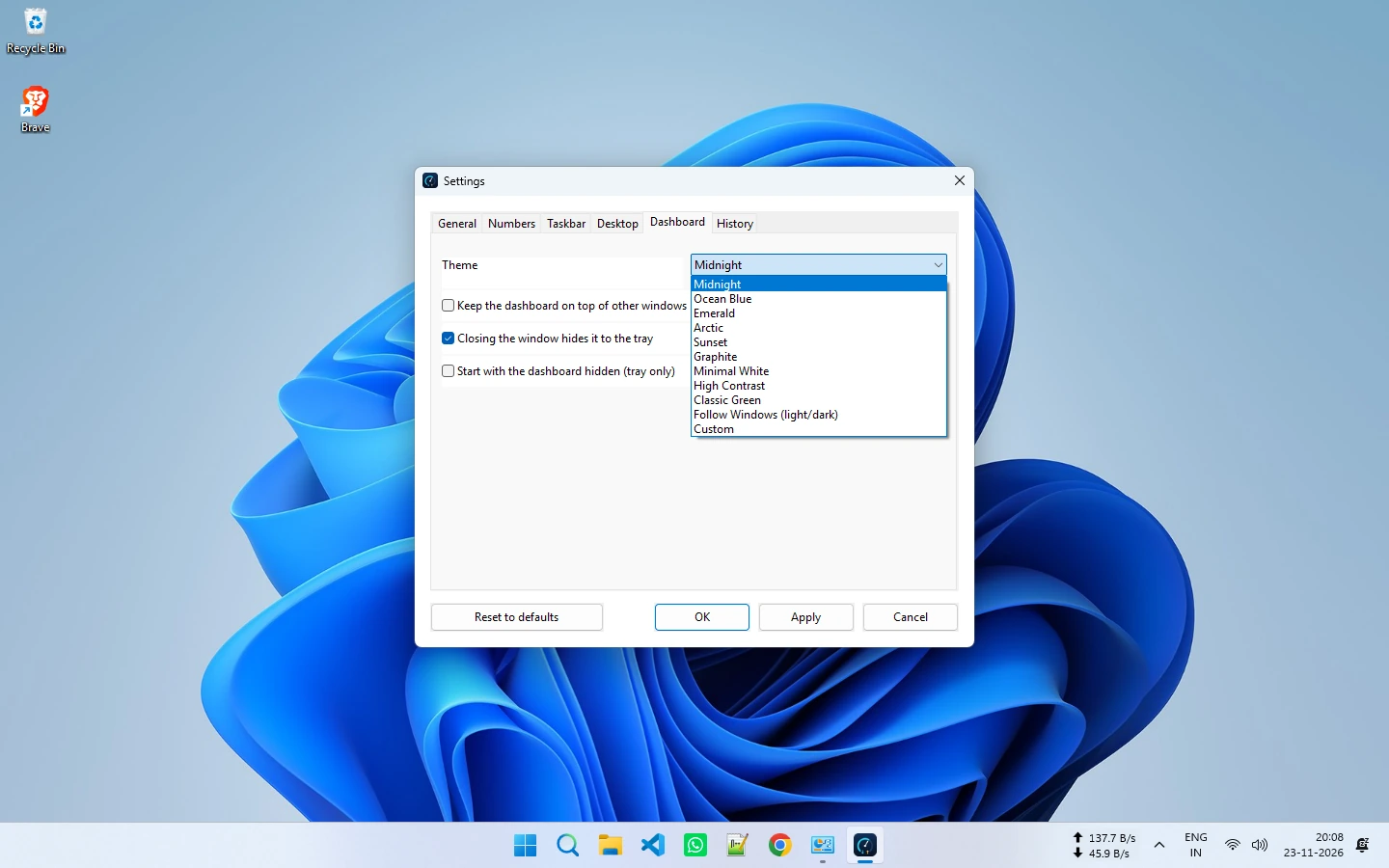
Use Apply to preview a change without closing Settings, and Reset to defaults to start over (it asks first).
Choosing a look that works
| Your situation | Suggested settings |
|---|---|
| Light and dark mode change through the day | Match the Windows taskbar, and the Follow Windows (light/dark) theme for the desktop readout |
| Busy or bright wallpaper | High Contrast theme, opacity 90 to 100% |
| Quiet, clean desktop | Minimal White or Graphite, opacity 60 to 80% |
| Second monitor | Numbers only layout, locked in a corner |
| You want bigger taskbar text | Untick Match the Windows taskbar and set a larger Text size |
Things to know
- Text size and Match the Windows taskbar are mutually exclusive: while matching, the size follows the Windows clock, and the text also shrinks automatically to fit the taskbar height.
- Layout is set separately for the taskbar readout and the desktop readout.
- Custom colours (background, surface, text, muted text, download, upload, warning, error and border) and the font family are set in advanced settings.
- Themes are checked for readable contrast, and Windows High Contrast mode is detected and applied automatically.
- Download and upload are always told apart by arrow direction and colour, not colour alone.
- Changes apply when you click Apply or OK.
Readability first
A pretty readout that you cannot read is useless. Test your choices in the lighting you normally work in, and look at the display from your normal sitting distance. If it fails, see text hard to read on the taskbar.
More on each option: themes and appearance, opacity and light and dark support. Ready to try? Download NetSpeedDisplay.
Related pages
Themes and Appearance
Choose from 9 built-in themes, six layouts and adjustable opacity for the desktop readout, or match the Windows taskbar. See what each option does and how to pick.
Configuration
NetSpeedDisplay 1.0.0 Settings: six tabs (General, Numbers, Taskbar, Desktop, Dashboard, History) with OK, Apply, Cancel and Reset to defaults, plus the right-click menu.
First published 14 October 2026 · Last updated 23 November 2026. Found a mistake or something out of date? Email [email protected] and we will fix it. See how we write and test content.