
Light and dark taskbar support
NetSpeedDisplay text follows your Windows light or dark taskbar so the speed stays readable. Here is how it works and how to tune it.
Windows lets you choose a light or dark taskbar. If a program draws dark text on a dark taskbar, it becomes invisible. NetSpeedDisplay follows your Windows theme so that the readout stays readable.
How it behaves
The text color adapts to the taskbar. You can leave the defaults alone, or change colors yourself from the Appearance menu.
Options you can use
| Appearance option | What it does |
|---|---|
| Taskbar Text Color | Choose a fixed text color |
| Taskbar Background Color (solid) | Use a solid background |
| Match Taskbar Color (sharper Windows-style text) | Blend in with the taskbar |
| Taskbar Background Transparent | Keep the background see-through |
| Reset Appearance | Return to the defaults |
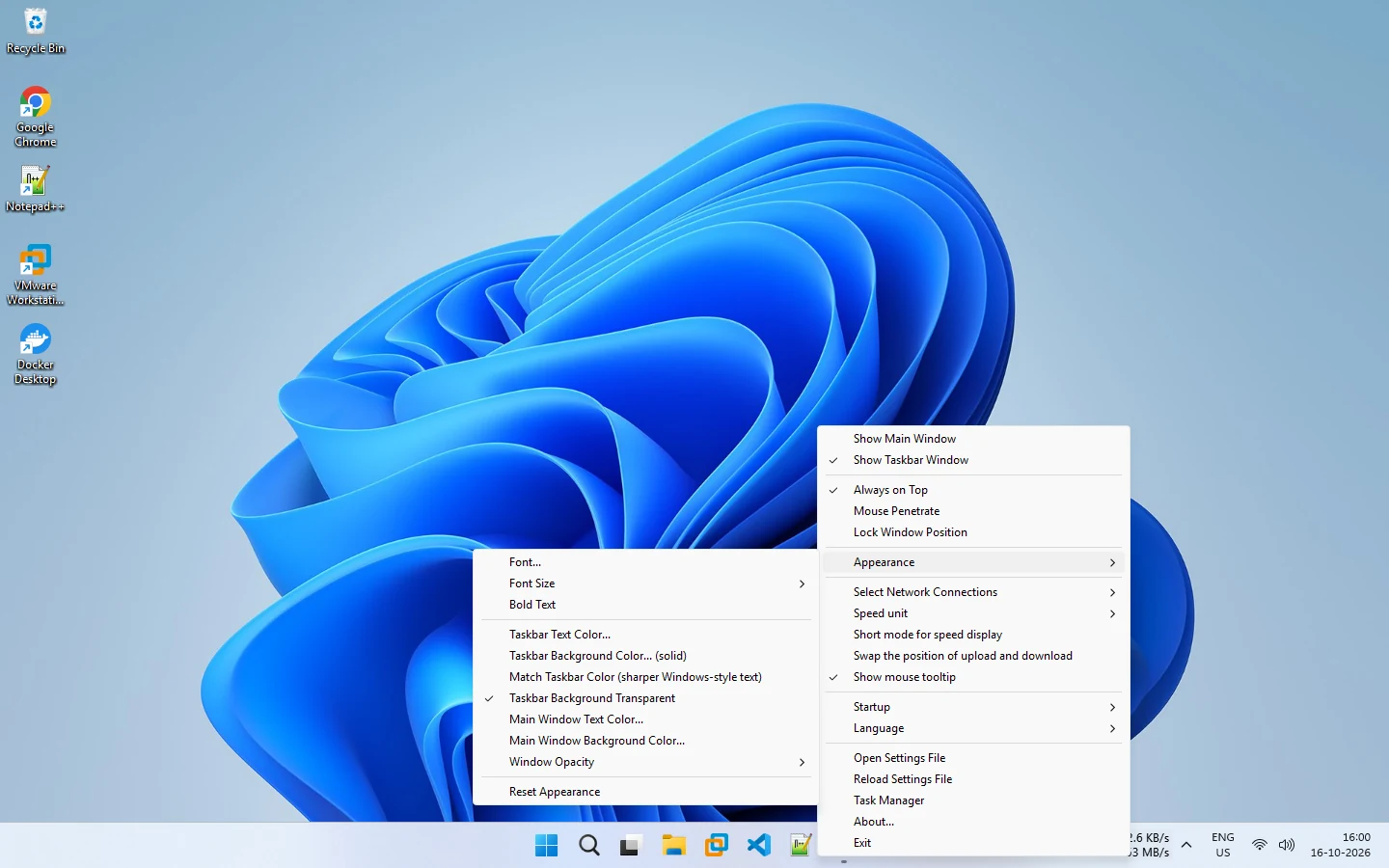
If the text is hard to read
- Switch between a transparent and a solid background.
- Pick a text color with strong contrast.
- Try Match Taskbar Color.
- If your taskbar uses an accent color or transparency effects, test a few combinations.
See text hard to read on the taskbar.
Changing the Windows theme
If you switch between light and dark mode in Windows, check that the readout still looks right. Restart the program if it does not update.
More options are in appearance customization.
Related pages
Appearance customization
Change the font, size, bold, taskbar and main window colors and opacity from the Appearance menu of NetSpeedDisplay.
Taskbar speed display
Live upload and download speed right next to the notification area, with text that follows your light or dark Windows theme.
Published 2026-10-17