
Right-click menu reference
Every item in the NetSpeedDisplay right-click menu, what it does and where to read more. A complete map of the program's controls.
Almost everything in NetSpeedDisplay is controlled from one right-click menu. Open it by right-clicking the speed display or the tray icon.
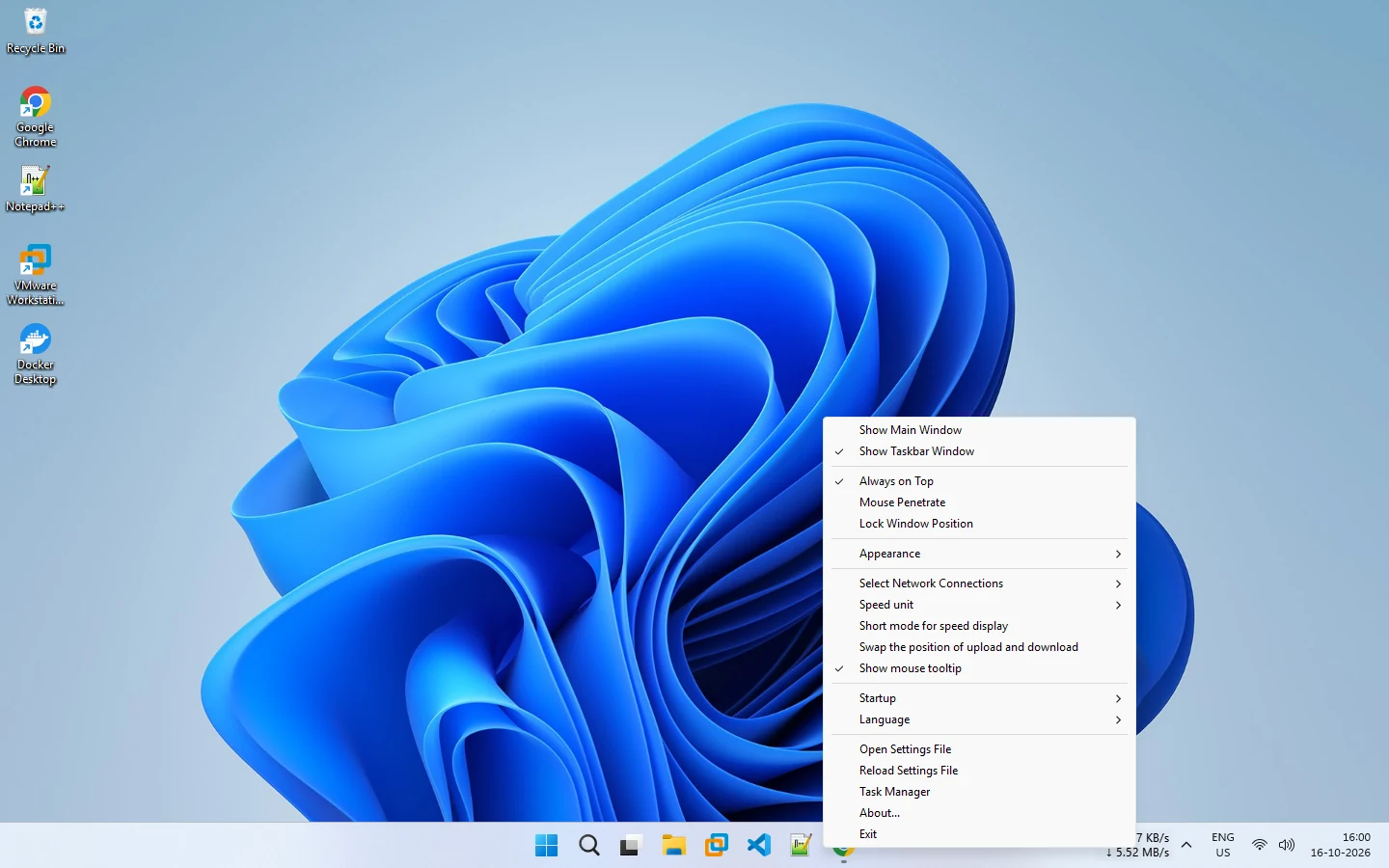
Menu items
| Item | What it does | Read more |
|---|---|---|
| Show Main Window | Shows or hides the floating window | Floating window |
| Show Taskbar Window | Shows or hides the taskbar readout | Taskbar display |
| Always on Top | Keeps the floating window above others | Always on top |
| Mouse Penetrate | Lets clicks pass through the window | Click-through |
| Lock Window Position | Stops the window from being dragged | Lock position |
| Appearance | Font, size, bold, colors, opacity, reset | Customization |
| Select Network Connections | Choose which adapters are measured | Adapters |
| Speed unit | Bytes (B) or bits (b) | Units |
| Short mode for speed display | A more compact format | Short mode |
| Swap the position of upload and download | Reorders the readout | Swap order |
| Show mouse tooltip | Turns the hover tooltip on or off | Hover tooltip |
| Startup | When it starts with Windows | Startup |
| Language | Interface language | Languages |
| Open Settings File | Opens your saved settings | Settings file |
| Reload Settings File | Reads the settings file again | Settings file |
| Task Manager | Opens Windows Task Manager | Task Manager guide |
| About | Shows program information | About |
| Exit | Closes NetSpeedDisplay |
Tips
- If you cannot reach the menu on the floating window because click-through is on, use the tray icon.
- Menu labels may differ slightly depending on the interface language you choose.
New to the program? Start with getting started.
Related pages
Tray icon
The NetSpeedDisplay tray icon shows speeds in a tooltip and shows or hides the floating window.
Appearance customization
Change the font, size, bold, taskbar and main window colors and opacity from the Appearance menu of NetSpeedDisplay.
Published 2026-10-17