
Tray icon
The NetSpeedDisplay tray icon shows speeds in a tooltip and shows or hides the floating window.
NetSpeedDisplay places an icon in the notification area.
- Hover: the tooltip shows your current speeds.
- Click: shows or hides the floating window.
- Right-click: opens the menu.
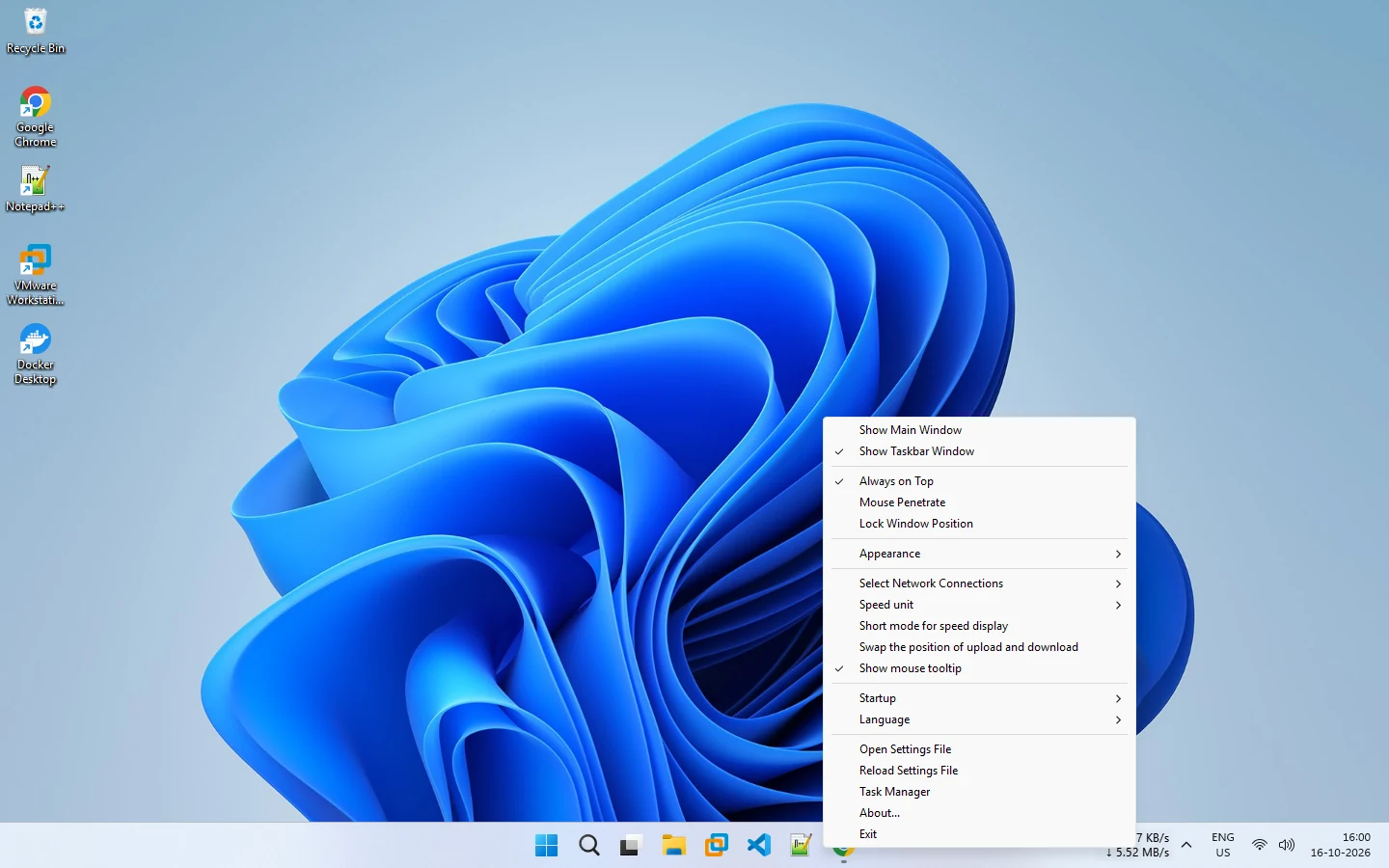
The menu at a glance
| Menu item | What it does |
|---|---|
| Show Main Window | Show or hide the floating window |
| Show Taskbar Window | Show or hide the taskbar display |
| Always on Top | Keep the floating window above other windows |
| Mouse Penetrate | Let clicks pass through the window |
| Lock Window Position | Stop the window from moving |
| Appearance | Font, colors and opacity (details) |
| Select Network Connections | Choose adapters (details) |
| Speed unit | Bytes or bits (details) |
| Short mode for speed display | A more compact readout |
| Swap the position of upload and download | Flip the two lines |
| Show mouse tooltip | Show details when hovering |
| Startup | How it starts (details) |
| Language | Switch language (details) |
| Open Settings File, Reload Settings File | Edit settings in a file, then reload them |
| Task Manager, About, Exit | Open Task Manager, show version info, close the program |
If you cannot see the icon, open the hidden icons area of the taskbar and drag it out to keep it visible.
Related pages
Tray icon with speed tooltip
A tray icon that shows current speeds in its tooltip and shows or hides the floating window with a click.
Floating window
Drag, fade, pin on top and click through the optional NetSpeedDisplay floating window.
Published 2026-10-14 · Updated 2026-10-16