
Taskbar Speed Display
Live upload and download speed right next to the clock, with options to match your Windows taskbar colors, set order and stay visible.
The taskbar is the one part of the screen that is almost always visible. That makes it the best place for a speed readout. NetSpeedDisplay puts yours there, right next to the clock, so you can see your connection without opening anything. The readout is attached to the taskbar window itself, so it stays visible even when you open Start, Search or other taskbar flyouts.
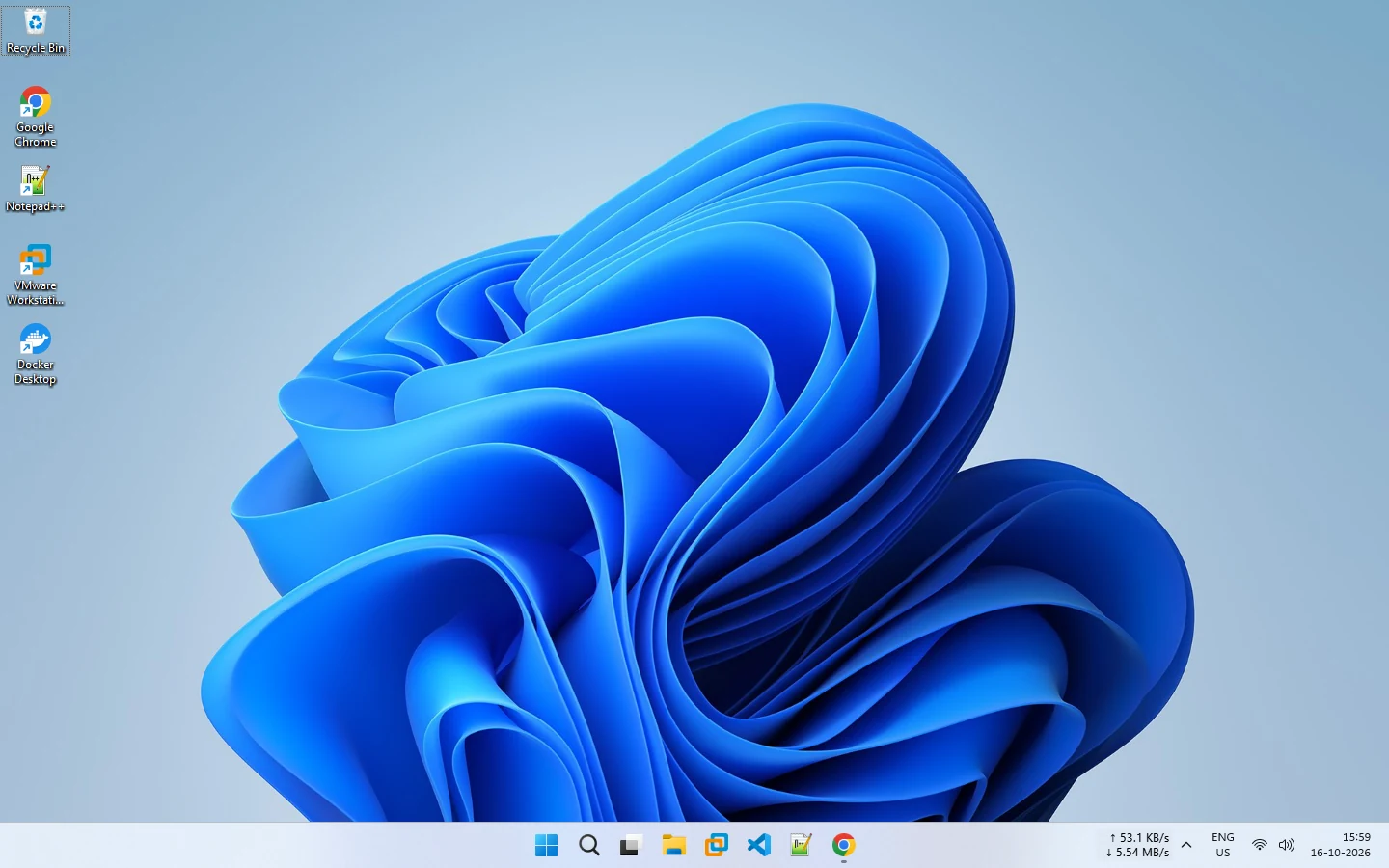
What you get
- Upload and download speed, live (every second by default)
- Always visible, even over maximized windows and when Start opens
- By default it looks built in: no background box, the clock’s font and size, white or black text that follows light and dark mode
- Choice of units and six layouts
- On or off from the right-click menu
Auto-fit (new in 1.0.0)
- Fits the taskbar height. The text shrinks to fit small or large taskbar buttons, at the top or bottom of the screen.
- Never covers other taskbar items. It keeps clear of Start, search, task view, app buttons, Widgets, Copilot, tray icons and the clock, and moves to the nearest free spot when they grow.
- Windows 11: it reads the exact position of every taskbar button through Windows UI Automation, in the background every 2 seconds.
- Windows 10 and the classic taskbar: it reserves its own space by shortening the app-button area, and gives it back when the readout is hidden or the app closes.
- Automatic width: exactly as wide as the text, with both lines aligned.
- Follows the taskbar when you move it, change scaling, switch light or dark mode, connect or disconnect monitors, or when Explorer restarts. On a vertical or auto-hidden taskbar it sits beside the taskbar.
- Drag it along the taskbar to position it, and use Lock position to stop accidental dragging. Double-click it to open the dashboard.
Options on the Taskbar tab
| Option | What it does |
|---|---|
| Stay visible when Start or other windows open | Keeps it embedded in the taskbar |
| Match the Windows taskbar | No background, system font and text color |
| Show upload above download | Sets the order. See swap order |
| Text size | Make numbers bigger or smaller |
| Layout, theme, opacity | Used when Match the Windows taskbar is off, for a rounded translucent panel |
| Lock position | Stops the readout from being dragged |
Turning it on and off
Right-click the tray icon or the readout. The Show speed permanently on the taskbar option controls it. Untick it and the readout goes away. Tick it and it comes back.
Troubleshooting
- Nothing appears: tick Show speed permanently on the taskbar.
- Hard to read: increase the text size, or see text hard to read.
- Zero: choose the right adapter: zero network speed.
- Windows 11 issues: taskbar display issues.
Light and Dark Taskbar Support
Windows lets you choose a light or dark mode, and some people switch between them during the day. A speed readout that is perfect on a dark taskbar can vanish on a light one. NetSpeedDisplay handles this, so you can read your numbers either way.
What happens by default
NetSpeedDisplay reads your Windows light or dark setting and can follow it.
- Taskbar readout: tick Match the Windows taskbar. This uses no background and the system font and text color.
- Desktop readout: choose the Follow Windows (light/dark) theme, or pick a fixed theme such as High Contrast.
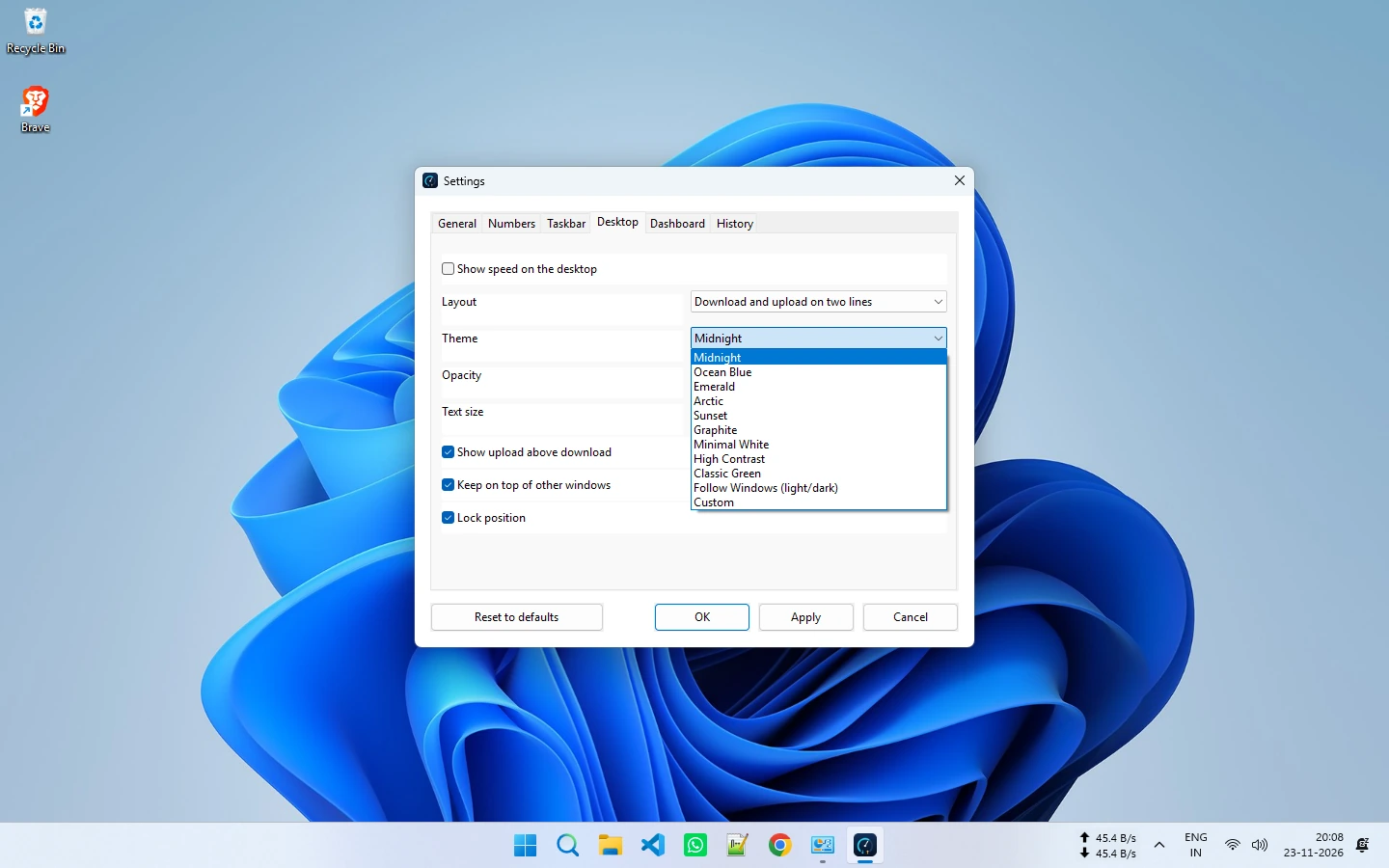
Step by step
For the taskbar
- Right-click the tray icon and open Settings.
- Go to the Taskbar tab.
- Tick Match the Windows taskbar.
For the desktop readout
- Open Settings → Desktop.
- Choose Follow Windows (light/dark) as the theme.
Which approach to use
| Situation | Choice |
|---|---|
| Taskbar in light or dark mode | Match the Windows taskbar |
| Desktop readout, mode changes with time | Follow Windows |
| Desktop readout on a busy wallpaper | High Contrast |
| You want a fixed look | Pick any fixed theme |
If text is hard to read
- Increase the text size on the Taskbar tab.
- Switch to a higher-contrast theme for the desktop readout.
- Check your Windows accent color settings. Colored taskbars can reduce contrast.
- Read text hard to read on the taskbar.
Why this matters
Readability is the whole point of a speed meter. If you have to squint, you will stop looking at it. A readout that adapts to light and dark mode is one you will actually use. For general taskbar tips, see Windows taskbar internet speed.
A Taskbar Readout That Stays Visible
A readout that vanishes the moment you click Start is more annoying than helpful. NetSpeedDisplay is built so the taskbar readout stays where you put it, and keeps behaving as your setup changes.
Why overlays disappear
Windows lifts the taskbar above ordinary always-on-top windows when Start or search opens. A normal overlay window therefore hides behind those flyouts. That is the usual reason speed readouts “disappear” when you open something.
What NetSpeedDisplay does
By default, the option Stay visible when Start or other windows open (embed in taskbar) is on. The readout is created as a child window of the taskbar itself, so it is shown whenever the taskbar is shown. If you untick it, or if the taskbar window cannot be used, the readout becomes a topmost popup. It is put back above the taskbar on every window change and four times a second, but it can still hide behind Start or search.
Behaviors you get
| Situation | What happens |
|---|---|
| Click Start or open search | The readout stays visible in the default mode |
| Explorer restarts | The readout is created again automatically |
| You change display scaling | It adapts to the new scale |
| Light or dark mode changes | It follows, with Match the Windows taskbar on |
| A monitor is unplugged | The readout moves to a visible monitor |
| Second monitor with its own taskbar | Each display is handled separately, using that monitor’s taskbar |
| Vertical (left or right) taskbar | It sits beside the taskbar, in the work area, so it never covers Start or pinned apps |
| Auto-hide taskbar | The same “beside the taskbar” placement is used |
Placement and size
- It sits vertically centered, just left of the clock.
- Drag it left or right along the taskbar. It stays inside the taskbar, and the position is remembered.
- Lock position in Settings → Desktop stops dragging.
- With two lines (upload on top by default, download below), a thin taskbar first reduces padding, then text size, so both lines still fit. It does not silently change to one line.
- Double-click it to open the dashboard, and right-click for the menu.
Look
With Match the Windows taskbar on (the default), the readout has no background, uses the system UI font and size like the clock, and uses white or black text following your Windows light or dark setting. Untick it for a themed, rounded, translucent panel. See light and dark taskbar support.
Taskbar display
The taskbar display shows upload and download speed next to the clock, where you can see it at a glance.
Turn it on or off
Tick Show speed permanently on the taskbar in the tray menu, or on the Settings Taskbar tab.
Options (Settings → Taskbar)
- Stay visible when Start or other windows open (embed in taskbar).
- Match the Windows taskbar (no background, system font and text color), so it follows your light or dark taskbar.
- Show upload above download.
- Text size (unavailable while matching the Windows taskbar).
- Speed unit: Automatic, KB/s, MB/s, GB/s, Kbit/s, Mbit/s or Gbit/s.
If it is missing or hard to read, see taskbar display issues.
Getting the best look
- Tick Match the Windows taskbar to follow light and dark modes automatically.
- If you want a bigger readout, untick that option and use Text size.
- Choose Show upload above download if upload matters most to you. See swap order.
- Pick a fixed unit such as MB/s or Mbit/s so the width stays stable.
Frequently asked questions
Does it cover my icons? It sits next to the clock.
Does it support multiple monitors? Use the desktop readout for another screen.
Does it work on Windows 7 or 8? No. NetSpeedDisplay needs 64-bit Windows 10 or 11. See compatibility.
Does it work on Windows 10 and 11? Yes. See Windows 10 steps and Windows 11 steps.
Will it follow my theme if I change it while running? Use the Follow Windows setting so it adapts.
Can I override it? Yes, with a fixed theme.
Does it work on Windows 11? Yes. See net speed monitor for Windows 11.
Why is the readout beside the taskbar on my PC? You may use a vertical or auto-hide taskbar, or you unticked the taskbar option.
Can I hide it? Use the tray menu to hide the desktop readout, or untick the taskbar option.
Related pages
Net Speed on the Windows Taskbar: Show Live Internet Speed (Windows 11 and 10)
Windows has no built-in taskbar speed readout. See the options and show live download and upload speed on the taskbar of Windows 11 or 10 for free.
Desktop Speed Readout: Drag, Lock, Opacity, Order and Always on Top
Everything about NetSpeedDisplay's floating desktop readout: placing and locking it, layouts, themes, opacity, upload/download order and keeping it on top.
Taskbar speed readout missing, hidden or in the wrong place
Fix the NetSpeedDisplay taskbar readout when it is missing, hidden behind Start, overlapping icons or on the wrong monitor on Windows 11 or Windows 10.
First published 14 October 2026 · Last updated 25 November 2026. Found a mistake or something out of date? Email [email protected] and we will fix it. See how we write and test content.