
Desktop Speed Readout: Drag, Lock, Opacity, Order and Always on Top
Everything about NetSpeedDisplay's floating desktop readout: placing and locking it, layouts, themes, opacity, upload/download order and keeping it on top.
The desktop readout is a small readout of your live upload and download speed that you can put anywhere: a corner of your main screen, the edge of a second monitor, or next to the app you are watching. It shows the same numbers as the taskbar, in a form you control.
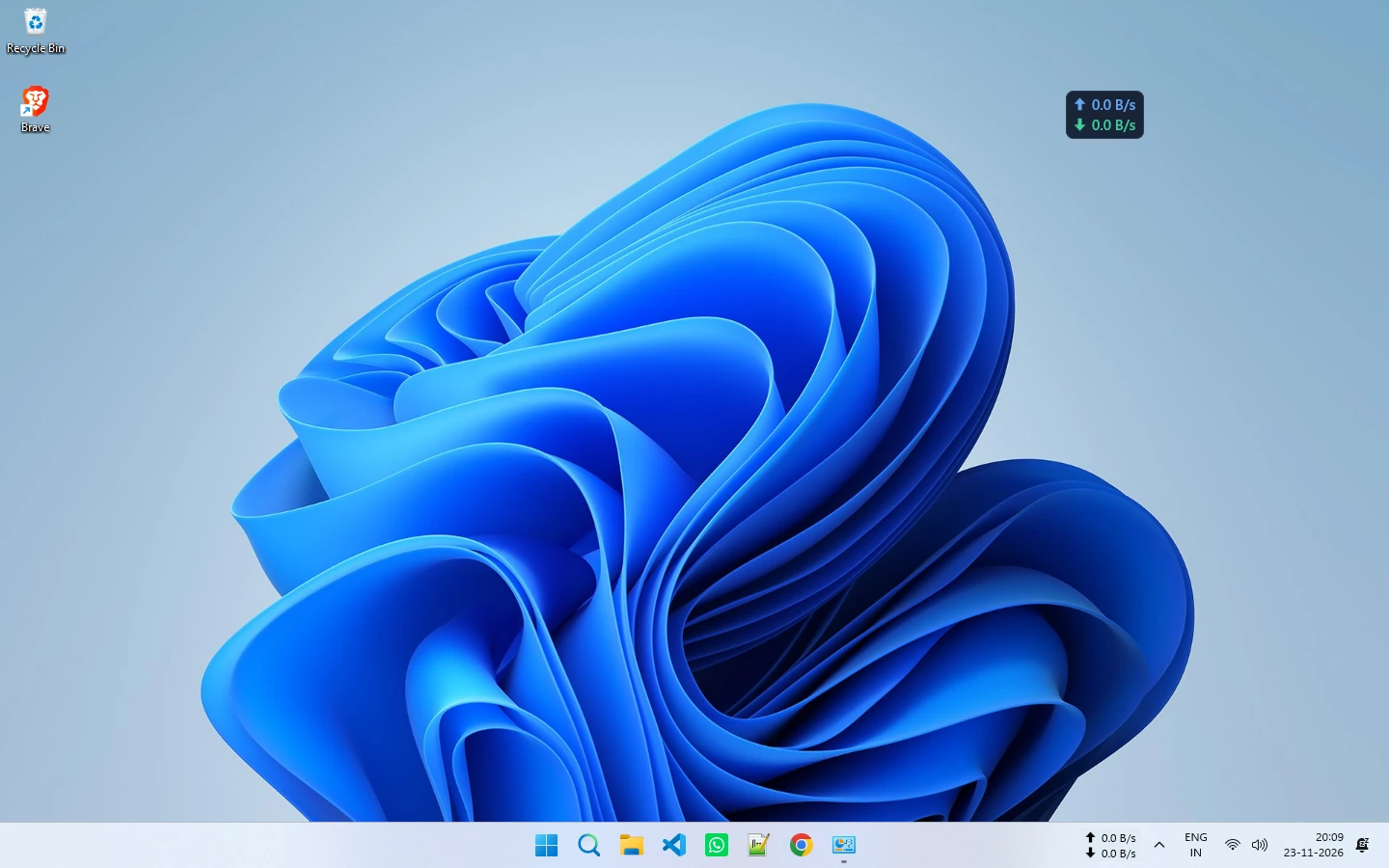
Turn it on
Open Settings → Desktop and tick Show speed on the desktop. Then drag it where you want it.
Controls on the Desktop tab
| Control | What it does |
|---|---|
| Show speed on the desktop | Turns the readout on |
| Drag | Move it to any position |
| Lock position | Keeps it where it is |
| Opacity | Blend it into your wallpaper |
| Keep on top | Stay above other windows |
| Layout | Choose how numbers are arranged |
| Theme | Choose colors |
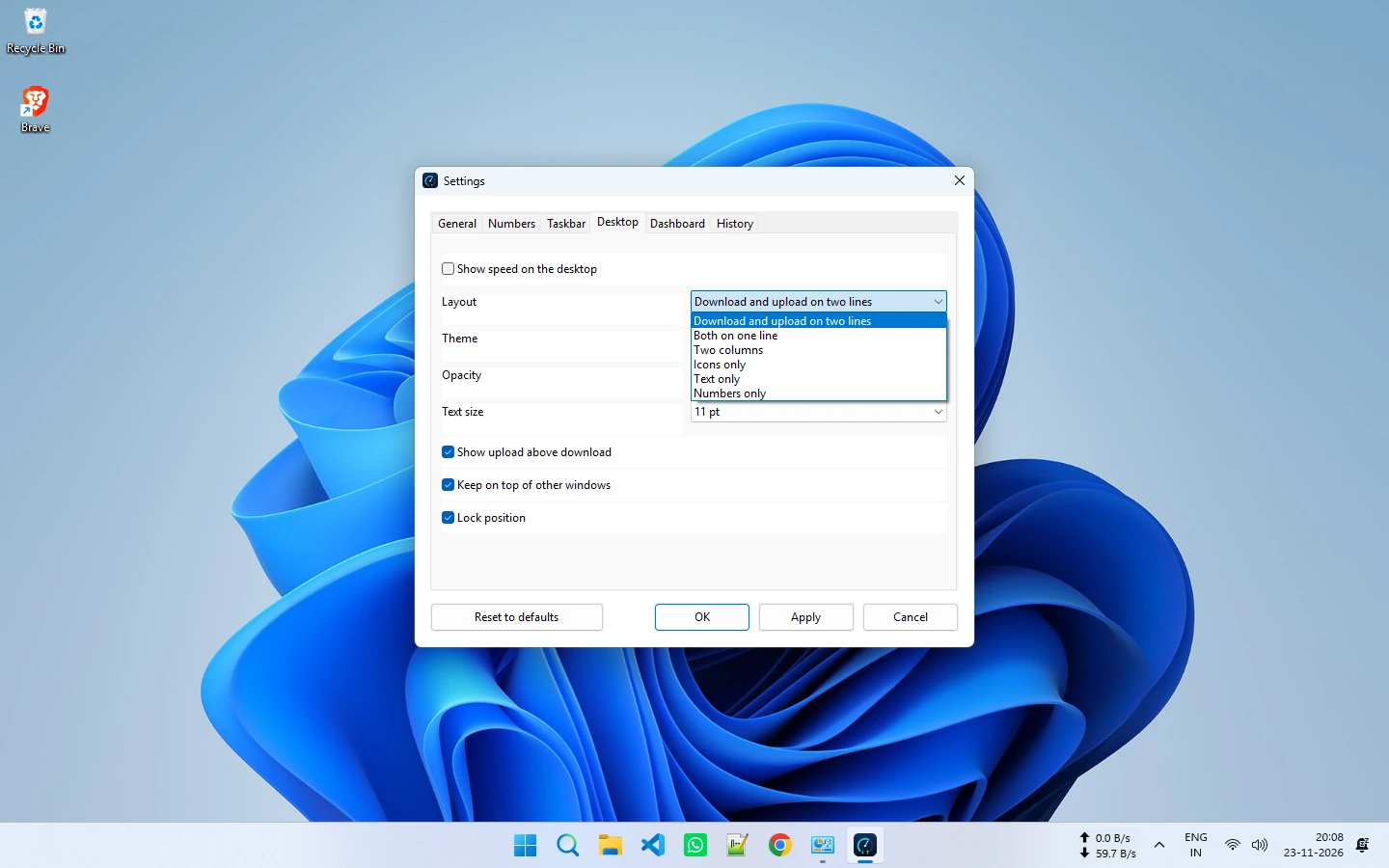
Six layouts
- Download and upload on two lines
- Both on one line
- Two columns
- Icons only
- Text only
- Numbers only
Smaller layouts such as numbers only save space. Larger ones are easier to read from a distance.
Who benefits
- Second monitor users who want a speed readout always in view
- Streamers and gamers who need to see upload without opening a window. See monitoring for streamers
- People who prefer the desktop over the taskbar
- Anyone presenting or sharing a screen, who can hide the taskbar readout
Design tips
- Pick a theme that contrasts with your wallpaper.
- Lower the opacity so it fades into the background.
- Lock the position once it is placed.
- Use keep on top if it disappears behind windows.
Opacity for the Desktop Readout
The desktop readout is meant to be glanceable, not noticeable. The Opacity slider lets you decide how solid it looks, from a faint watermark to a clear panel.
How to choose a value
| Opacity | Effect | Good for |
|---|---|---|
| 100% | Solid | Busy wallpapers, bright rooms |
| 80 to 90% | Slightly see-through | Everyday use |
| 50 to 70% | Clearly translucent | Clean wallpapers, second monitors |
| Below 50% | Faint | Very quiet setups. May be hard to read |
Lower values blend into your wallpaper. Higher values are easier to read.
Tips
- If you lower opacity, pick a theme with strong contrast, such as High Contrast.
- Test on your real wallpaper, since photos change the contrast.
- If you use keep on top, a lower opacity keeps the readout from blocking your view. See always on top.
- Combine it with lock position so it stays in place.
Lock the Desktop Readout Position
A readout you placed carefully should stay where you put it. Lock position prevents accidental drags, so a stray click does not send your desktop readout to the wrong corner.
How to lock it
- Right-click the tray icon and open Settings.
- Go to the Desktop tab.
- Tick Lock position.
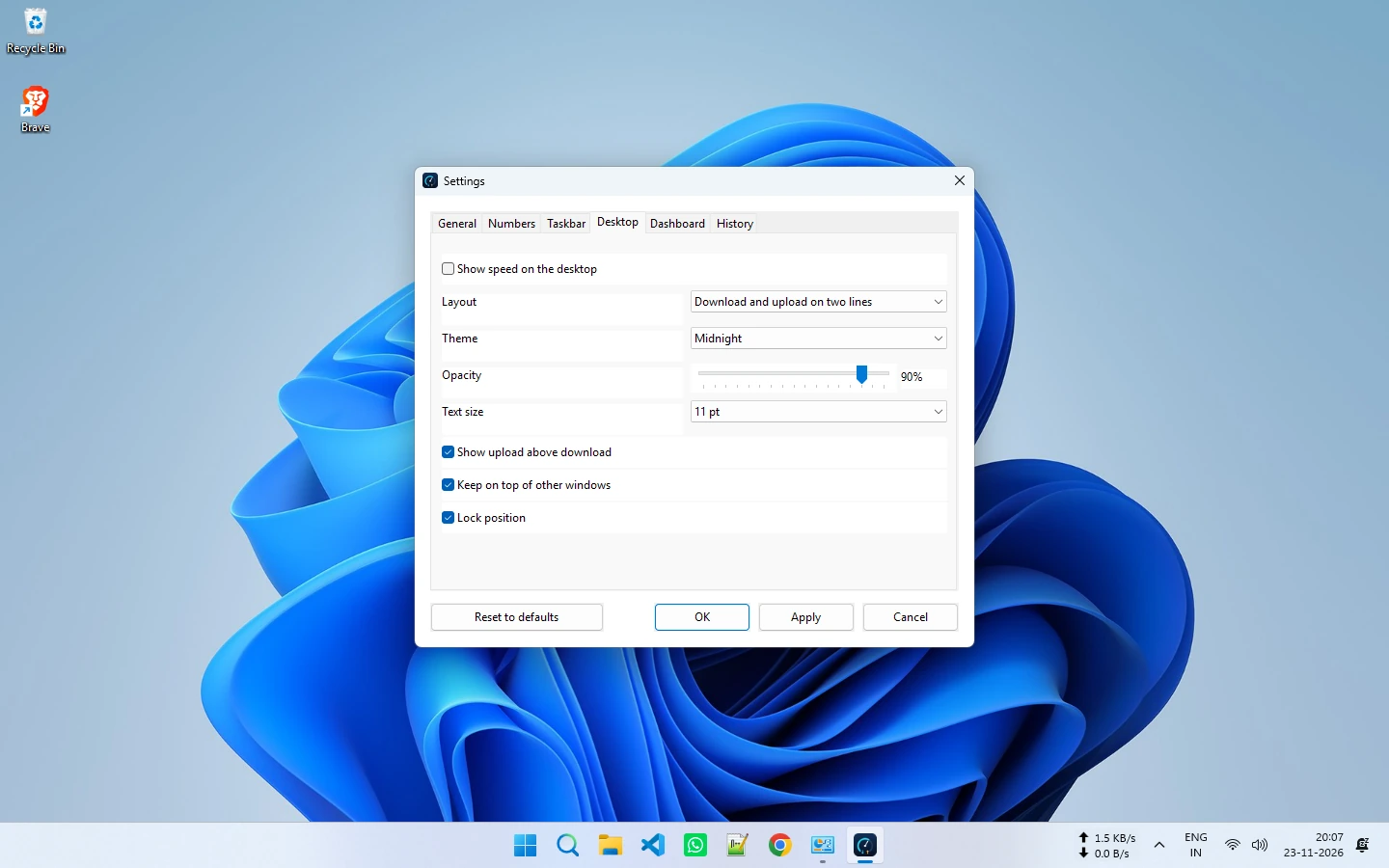
To move it again, untick Lock position, drag the readout, then tick the option once more.
When to use it
- After you have placed the display exactly where you want it.
- When you work with a mouse or pen that clicks often near the screen edge.
- On a shared or presentation setup, where the layout should stay stable.
- If you use keep on top, so that dragging does not interfere with other windows. See always on top.
A simple setup routine
- Turn on Show speed on the desktop.
- Pick a layout and theme.
- Drag it to a quiet corner of your screen.
- Set the opacity so it blends in.
- Tick Lock position.
That is a five-second job that you only do once.
If the display went off screen
If you disconnected a monitor, the display might be on a screen that no longer exists. Reconnect it, or turn the desktop readout off and on again in Settings so it reappears.
Show Upload Above Download
Which number do you glance at first? For most people it is download. For people on calls, streams and backups, it is upload. NetSpeedDisplay lets you put upload on the top line, so the number you care about is the first you see.
Which order suits you?
| You mostly… | Prefer |
|---|---|
| Browse, stream and download | Download on top |
| Make video calls, stream live or back up files | Upload on top |
| Work from home | Upload on top, since upload is the early warning |
The order does not change the numbers, only where your eye lands first.
Why upload deserves attention
Download is easy: it is usually the larger number, and your provider advertises it. Upload is usually smaller and runs out sooner. A single backup can use all of it. See download speed vs upload speed and why upload speed is low.
Read the numbers
- Both near zero: nothing is happening.
- Download high: a download or stream.
- Upload high: a call, backup or sync. If you did not start it, find out what did. See which app is using your internet.
Always on Top: Keep the Desktop Readout in View
A speed readout is only useful if you can see it. The keep on top option makes NetSpeedDisplay’s desktop readout stay above other windows, so a glance is enough to know what your connection is doing.
When keep-on-top helps
- Video calls. Watch your upload while you talk.
- Big downloads. Keep an eye on speed while you use other programs.
- Gaming. See when a background task steals bandwidth. Play in borderless windowed mode if a full-screen game hides the readout.
- Streaming and recording. Place it on a second monitor.
- Troubleshooting. Watch the numbers change while you test a fix.
Make it unobtrusive
Always-on-top readouts can get in the way if they are large or opaque. Combine three settings:
| Setting | What it does |
|---|---|
| Opacity | Makes it see-through (the default is 90%) |
| Lock position | Stops accidental drags |
| Layout | Pick numbers only or icons only for a smaller footprint |
Place it near a screen edge, outside the area you use most.
If it disappears behind other windows
- Check the setting. Make sure the tick is still there.
- Full-screen exclusive games can hide any window. Switch the game to borderless windowed mode.
- Programs running as administrator can sit above normal windows. Run your game or app normally if possible.
- Another always-on-top window may be covering it. Move or close it.
See also how to keep any window always on top in Windows.
Prefer no extra window?
The taskbar readout is always visible without any pinning, because it sits next to the clock. Use the desktop readout when you want a readout elsewhere, such as on a second monitor. See Windows taskbar internet speed.
Desktop readout
The desktop readout is a small readout you can drag anywhere on the desktop, for example a corner of a second monitor. Earlier pages and search results may call it a floating window.
Controls
- Drag it to any position, or tick Lock position to keep it still.
- Keep on top of other windows keeps it above other windows.
- Opacity makes it more or less see-through.
- Layout and Theme change how it looks. See customization.
If you cannot drag it, see cannot move the desktop readout.
Choosing a layout
| Layout | Best for |
|---|---|
| Download and upload on two lines | Clear reading, a little more space |
| Both on one line | Wide, short spaces |
| Two columns | Compact squares |
| Icons only | The smallest footprint, once you know what the arrows mean |
| Text only | Labels without icons |
| Numbers only | Minimal, second monitors |
Placement tips
- Put it near a screen edge, away from toolbars and buttons.
- On a second monitor, put it where you glance naturally.
- Lock it once placed, with Lock position.
- Lower the opacity so it fades into the background. See opacity.
Common questions
Can I use the taskbar readout and the desktop readout at the same time? Yes. They are independent.
It disappears behind other windows. Tick Keep on top of other windows. See always on top.
It will not move. Untick Lock position first.
It went off screen after unplugging a monitor. Turn Show speed on the desktop off and on again in Settings.
For a deeper look at the idea, read the draggable desktop readout. Download NetSpeedDisplay to try it.
Frequently asked questions
Is it the same as the floating window? Yes. Earlier descriptions used that name.
Can I use it without the taskbar readout? Yes. Each can be turned on or off separately.
Does it work on multiple monitors? Drag it to the monitor you want.
Does low opacity save resources? No. It is purely visual.
Is the opacity setting saved? Yes, with your other settings.
Can I set a different opacity for each theme? It is a single slider for the desktop readout.
Does locking stop the readout from updating? No. It only stops dragging.
Does it also lock the taskbar readout? The taskbar readout sits in the taskbar, so it is not draggable.
Is the lock saved when I restart? Yes, with your settings.
Does the upload/download order apply to both readouts? Use its layout setting.
Does swapping the order change my speed unit? No. Set units on the Taskbar tab or Numbers tab.
Does swapping the order apply immediately? Yes, you can see it on the taskbar.
Will an always-on-top readout cover my work? Lower the opacity and place it in a corner. You can also lock it in place.
Does always on top use extra resources? No noticeable amount. See lightweight design.
Can I hide the desktop readout quickly? Untick Show speed on the desktop in Settings, or pause monitoring from the tray menu.
First published 14 October 2026 · Last updated 25 November 2026. Found a mistake or something out of date? Email [email protected] and we will fix it. See how we write and test content.