
Network Adapter Selection
Choose which network interface NetSpeedDisplay measures: Wi-Fi, Ethernet, VPN or others. Fix zero or doubled readings in one click from the tray menu.
Most PCs have more than one network adapter. Besides Wi-Fi and Ethernet, you may have a VPN, virtual machine adapters or a Bluetooth network. A speed meter has to know which one to watch, and NetSpeedDisplay lets you choose.
How to choose the adapter
- Right-click the NetSpeedDisplay tray icon.
- Open the Network interface submenu.
- Select the adapter you want to measure.
Your choice is saved with your settings.
Why it matters
| Symptom | Likely cause | Fix |
|---|---|---|
| Speed stuck at zero | Watching an unused adapter | Choose the active one |
| Speed looks different with a VPN | You picked the VPN adapter, or Windows routes through another adapter | Choose Automatic or the physical adapter |
| Speed lower than expected | Watching only one of several | Choose the adapter that carries your traffic |
Tips
- If you switch between Wi-Fi at home and Ethernet at work, check the selection when you change.
- After installing a VPN or virtual machine software, adapters change, so recheck.
- If a selection disappears, reselect the adapter.
How Automatic works
Automatic picks the adapter Windows uses to reach the internet. It asks Windows which route is best for a public address, without sending any packets, and measures that adapter. Key points:
- One adapter at a time. The app counts one adapter, never the sum of several.
- VPN and virtual adapters are ignored by default. That includes VPN tunnels and the virtual adapters from virtual machines. TAP-style adapters count as virtual.
- It follows changes. If you move from Wi-Fi to Ethernet, Automatic follows the route.
- Fallback to Automatic is on by default: if a manually chosen adapter disappears, the app goes back to Automatic.
Choose manually
Right-click the tray icon, open Network interface and select an adapter. Choose Automatic to return to automatic selection.
What this means with a VPN
Because Automatic ignores VPN adapters by default, it shows the traffic of your real Wi-Fi or Ethernet line. If you want to see the traffic inside the tunnel instead, pick the VPN adapter manually. Advanced users can enable VPN or virtual adapters for Automatic in settings.json (include_vpn and include_virtual). See advanced settings and monitoring speed with a VPN.
Why the display may show “No connection”
If no usable adapter is found or Windows’ counters cannot be read, the readout shows a dash and “No connection”. That means unavailable, not zero. Check your connection, or pick an adapter manually.
Quick guide
| Situation | Setting |
|---|---|
| Normal home PC | Automatic |
| You want tunnel traffic | Choose the VPN adapter manually |
| Two connections and you want one | Choose it manually |
| Readout shows a dash | Check connection, then re-select |
Helpful reading: Windows network adapters explained and how to check which adapter is active.
Automatic is the default
You usually do not need to choose anything. In Automatic mode, NetSpeedDisplay measures the adapter Windows uses to reach the internet, ignores VPN and virtual adapters, and counts one adapter only, never the sum. Read automatic network adapter selection for the details, including the dash and “No connection” status that means unavailable rather than zero.
How to choose
Right-click the tray icon and open Network interface. Pick the adapter you want. Your choice is saved in the settings file.
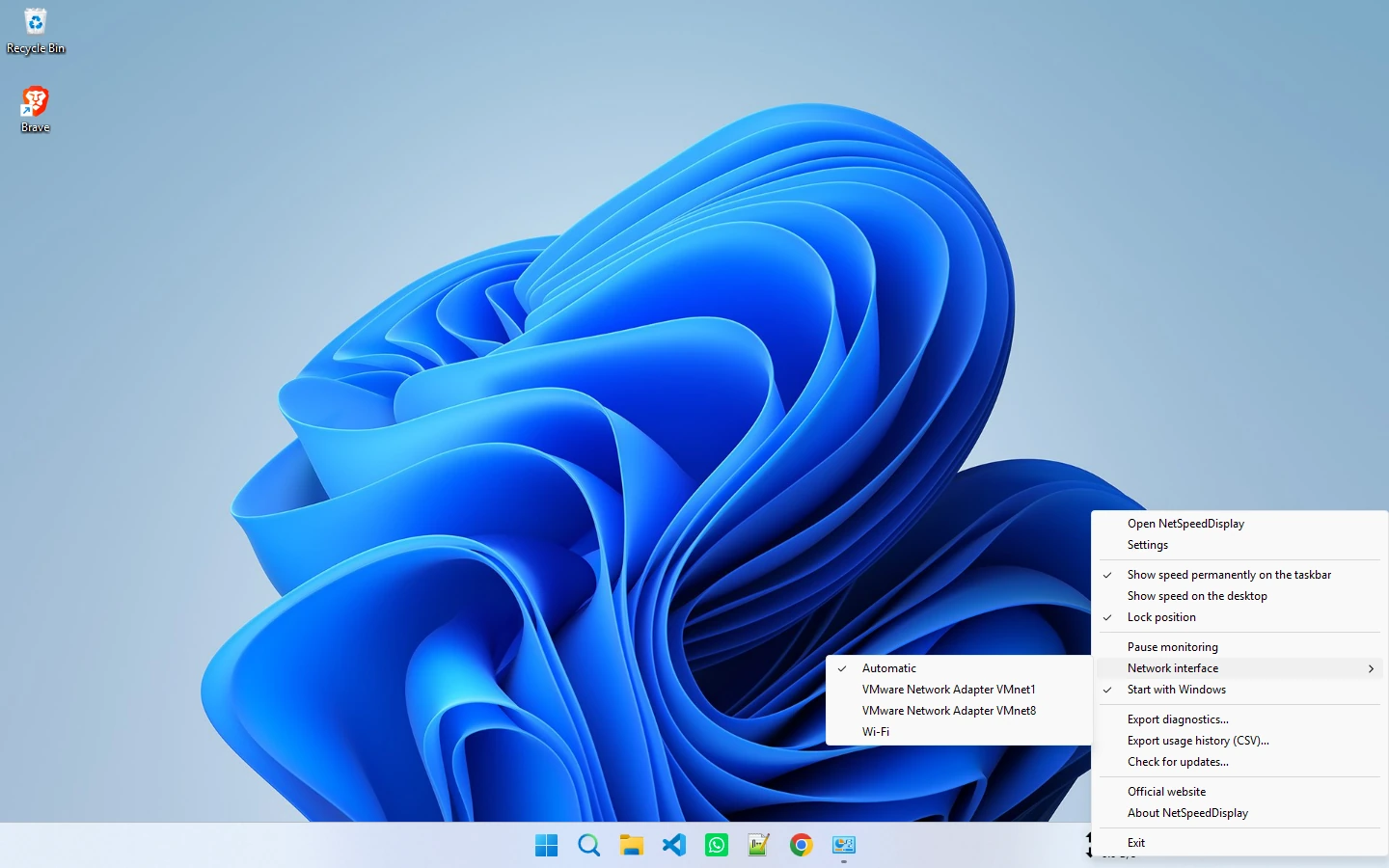
Which one should I pick?
- Use the adapter that carries your internet traffic, usually Wi-Fi or Ethernet.
- If the readout stays at 0 while you are online, you probably picked an idle adapter.
- A VPN adds a virtual adapter whose traffic mirrors what flows over the physical one. Measuring both can make the numbers look inflated. See speed looks doubled.
The network adapters guide explains the adapter types in general.
Automatic Network Adapter Selection
Most speed meters make you pick an adapter, and then show zero if you pick wrong. NetSpeedDisplay starts in Automatic mode, so for most people the right number simply appears.
How Automatic works
Automatic picks the adapter Windows uses to reach the internet. It asks Windows which route is best for a public address, without sending any packets, and measures that adapter. Key points:
- One adapter at a time. The app counts one adapter, never the sum of several.
- VPN and virtual adapters are ignored by default. That includes VPN tunnels and the virtual adapters from virtual machines. TAP-style adapters count as virtual.
- It follows changes. If you move from Wi-Fi to Ethernet, Automatic follows the route.
- Fallback to Automatic is on by default: if a manually chosen adapter disappears, the app goes back to Automatic.
Choose manually
Right-click the tray icon, open Network interface and select an adapter. Choose Automatic to return to automatic selection.
What this means with a VPN
Because Automatic ignores VPN adapters by default, it shows the traffic of your real Wi-Fi or Ethernet line. If you want to see the traffic inside the tunnel instead, pick the VPN adapter manually. Advanced users can enable VPN or virtual adapters for Automatic in settings.json (include_vpn and include_virtual). See advanced settings and monitoring speed with a VPN.
Why the display may show “No connection”
If no usable adapter is found or Windows’ counters cannot be read, the readout shows a dash and “No connection”. That means unavailable, not zero. Check your connection, or pick an adapter manually.
Quick guide
| Situation | Setting |
|---|---|
| Normal home PC | Automatic |
| You want tunnel traffic | Choose the VPN adapter manually |
| Two connections and you want one | Choose it manually |
| Readout shows a dash | Check connection, then re-select |
Helpful reading: Windows network adapters explained and how to check which adapter is active.
Network adapter selection
Most PCs have more than one network adapter: Wi-Fi, Ethernet, and virtual adapters from VPNs, virtual machines or Docker. NetSpeedDisplay lets you choose which one is measured.
Which one should I pick?
- Use the adapter that carries your internet traffic, usually Wi-Fi or Ethernet.
- If the readout stays at 0 while you are online, you probably picked an idle adapter.
- A VPN adds a virtual adapter whose traffic mirrors what flows over the physical one. Measuring both can make the numbers look inflated. See speed looks doubled.
The network adapters guide explains the adapter types in general.
Adapters you may see in the menu
| Name pattern | What it usually is |
|---|---|
| Wi-Fi, Wireless | Your wireless adapter |
| Ethernet | Your wired adapter |
| VPN, TAP, WireGuard | A virtual adapter from a VPN |
| vEthernet, VirtualBox, VMware | Virtual machine adapters |
| Bluetooth Network | Bluetooth tethering |
A simple way to pick the right one
- Start a download.
- Open Task Manager’s Performance tab and see which adapter’s graph moves.
- Select that adapter under Network interface.
- Check that NetSpeedDisplay now matches.
When to re-check
- After you connect or disconnect a VPN
- After you install virtual machine software
- When you switch between Wi-Fi and Ethernet
- After you dock or undock a laptop. See monitoring on laptops
Automatic mode
The menu starts on Automatic. It picks the adapter Windows routes internet traffic through and ignores VPN and virtual adapters unless you enable them in settings.json (include_vpn, include_virtual). The program counts one adapter, never the sum of several. If you pick an adapter that later disappears, it returns to Automatic by default. See automatic adapter selection and advanced settings.
Frequently asked questions
Can I measure two adapters at once? Choose the one you care about. Use Task Manager to compare.
Does the choice affect my internet speed? No. It only changes what is displayed.
Why is my speed zero? See zero network speed.
Will it add Wi-Fi and Ethernet together? No. It measures one adapter.
Does Automatic send traffic to decide? No. It reads the routing information from Windows.
Can I change it later? Yes, anytime from the tray menu.
Related pages
How to Check Which Network Adapter Is Active on Windows
Find out whether Windows is using Wi-Fi, Ethernet or a VPN adapter, using Settings, Control Panel or PowerShell, and why it matters for accurate speed readings.
Zero or incorrect speed readings
Fix NetSpeedDisplay showing 0 speed or numbers that do not match what you expect: paused monitoring, wrong adapter, units.
First published 14 October 2026 · Last updated 25 November 2026. Found a mistake or something out of date? Email [email protected] and we will fix it. See how we write and test content.