
How to check which network adapter is active on Windows
Find out whether Wi-Fi, Ethernet or a VPN is carrying your traffic, using Settings, Control Panel, PowerShell and a live readout.
A PC often has several network adapters: Wi-Fi, Ethernet, VPN, virtual machine and Bluetooth adapters. Knowing which one is carrying your traffic helps you read any speed meter correctly.
Option 1: Settings
Open Settings → Network & internet. The top of the page shows the connection Windows is using, either Wi-Fi or Ethernet. Open its properties to see the connection’s link speed.
Option 2: the classic adapter list
Press Win+R, type ncpa.cpl and press Enter. This opens the list of network connections. Adapters that are connected show a name and a status, and disabled or unplugged ones are greyed or marked.
Option 3: PowerShell
Open PowerShell and run:
Get-NetAdapter | Sort-Object Status | Format-Table Name, InterfaceDescription, Status, LinkSpeedAdapters with the status Up are connected. The LinkSpeed column shows the negotiated speed of the link, which is not the same as your internet plan speed.
Option 4: watch the traffic
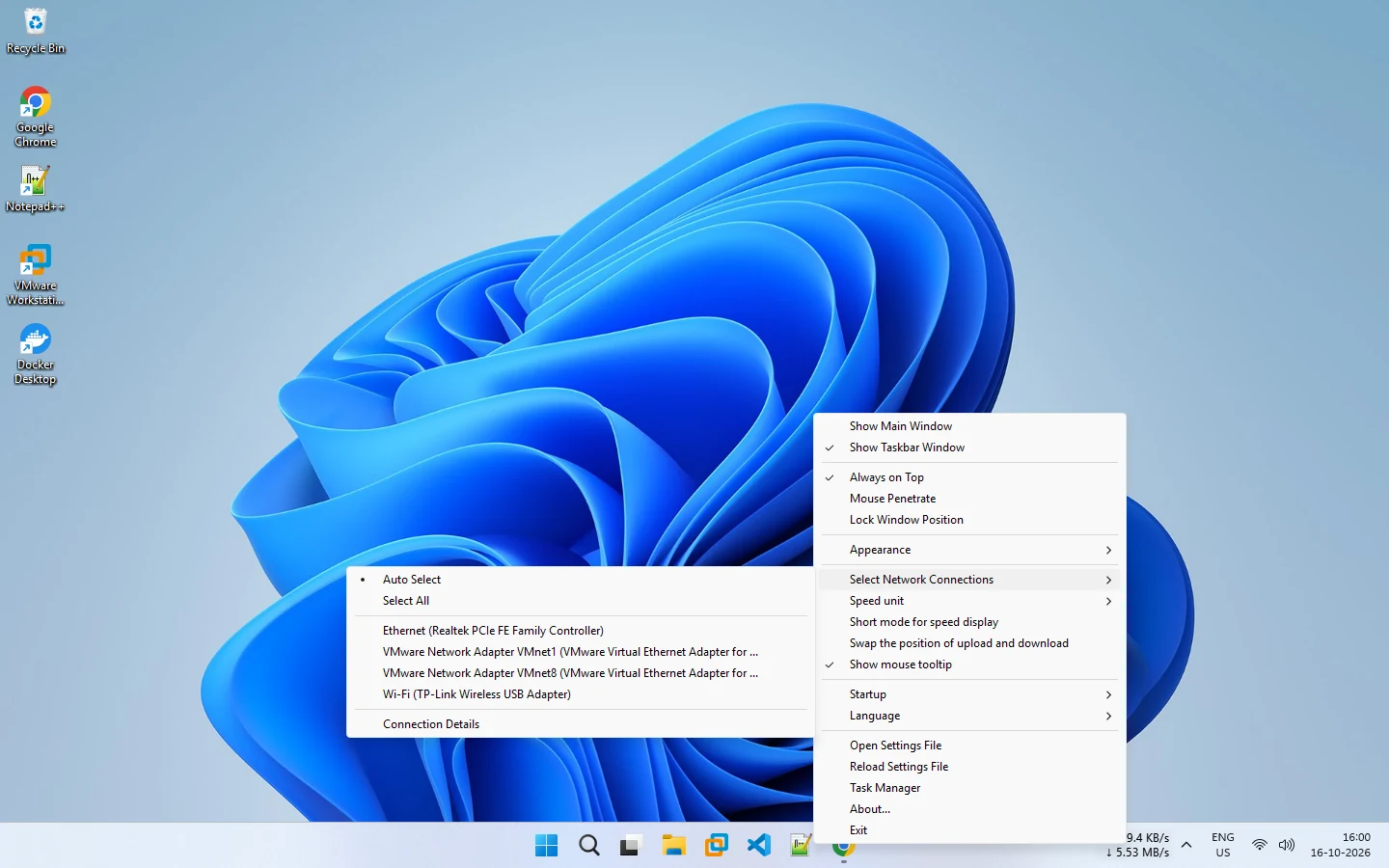
Start a large download and see which adapter’s counter moves. In Task Manager, open Performance and select each adapter. NetSpeedDisplay can do the same job from the taskbar: open Select Network Connections in the right-click menu to see the adapters it found.
Why it matters
If a speed meter reads zero while you are clearly online, it is usually watching the wrong adapter. NetSpeedDisplay counts physical adapters by default so VPN and virtual adapters are not double counted, and you can pick adapters by hand. The adapter selection guide explains the choices, and Windows network adapters explained covers the background.
Related pages
Network adapter selection
Let NetSpeedDisplay count physical adapters automatically, or pick the Wi-Fi, Ethernet or VPN adapters to measure.
Windows network adapters explained
What network adapters are and why several can appear.
Zero or incorrect speed readings
Fix NetSpeedDisplay showing 0 speed or numbers that do not match what you expect.
Published 2026-10-17