
Hover tooltip with speeds and totals
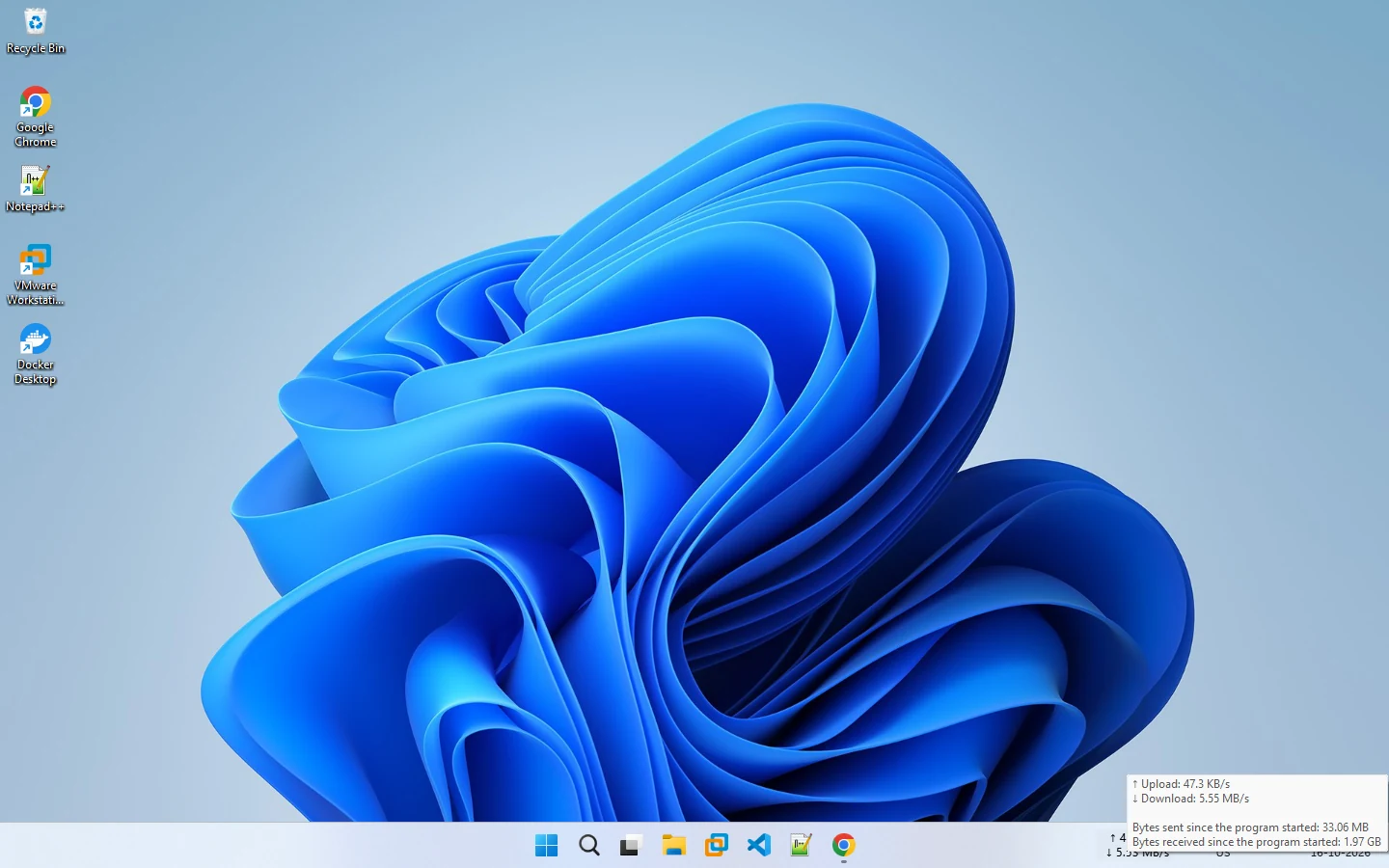
Hover over the speed display for a tooltip with current speeds and the data sent and received since the program started. Turn it on or off.
Hover your mouse over the NetSpeedDisplay readout and a tooltip shows more detail than the compact display can.
What the tooltip shows
- Current upload speed and download speed.
- Bytes sent since the program started.
- Bytes received since the program started.
Totals since the program started
The totals count from the moment the program started, not from midnight and not from the start of the month. Restarting the program resets them. That makes them handy for a single session, such as a download, a meeting or a hotspot evening. For longer-term totals, see Windows’ own Data usage page and how to monitor data usage on Windows.
Turn it on or off
The menu has a Show mouse tooltip option. Untick it if you do not want the tooltip to appear when you hover.
Use it as a quick checklist
- Note the sent and received totals before a task.
- Run the task.
- Hover again and compare. The difference is a rough measure of how much data the task used.
Treat figures as estimates. Your provider’s meter is the one that counts for caps.
Related: totals sent and received and tray icon tooltip.
Related pages
Totals sent and received on hover
Hover over the speed display to see how much data has been sent and received since NetSpeedDisplay started.
Tray icon with speed tooltip
A tray icon that shows current speeds in its tooltip and shows or hides the floating window with a click.
Published 2026-10-17