
Click-through floating window (Mouse Penetrate)
Let mouse clicks pass through the NetSpeedDisplay floating window so it never gets in the way of the app underneath.
Mouse Penetrate makes the floating window click-through. Your mouse clicks go to whatever is underneath instead of the NetSpeedDisplay window.
When it helps
- You keep the floating window on top of a game, video or document and do not want accidental clicks.
- You place it over part of another window and still need to use that part.
- You use a low-opacity window as an unobtrusive overlay.
How to turn it on
- Right-click the tray icon or the speed display.
- Tick Mouse Penetrate.
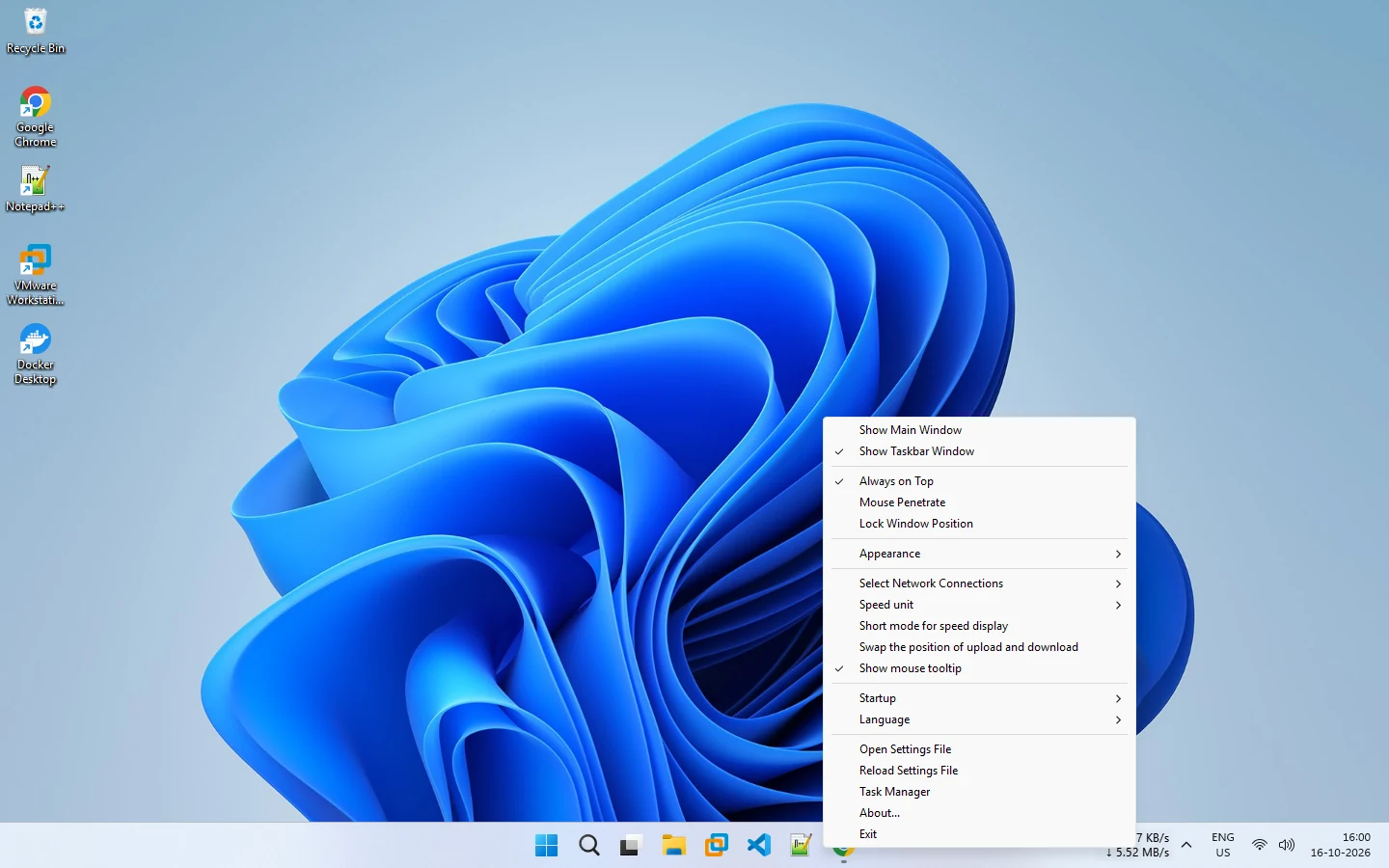
Combine it with Always on Top and a lower window opacity for a light overlay. See always on top and window opacity.
How to turn it off
Because a click-through window ignores the mouse, use the tray icon to reach the menu. Right-click the tray icon, then untick Mouse Penetrate. This is also what to do if you cannot drag the window. See cannot click or drag the floating window.
Related options
Use Lock Window Position if you only want to stop the window from being dragged by accident, while still being able to click it. See lock window position and the floating window guide.
Related pages
Draggable floating window
An optional floating window you can drag anywhere, with adjustable opacity, always-on-top and click-through.
Floating window
Drag, fade, pin on top and click through the optional NetSpeedDisplay floating window.
Published 2026-10-17