
Open and reload the settings file
NetSpeedDisplay lets you open its settings file and reload it from the menu, which helps with backups, moving your setup and advanced edits.
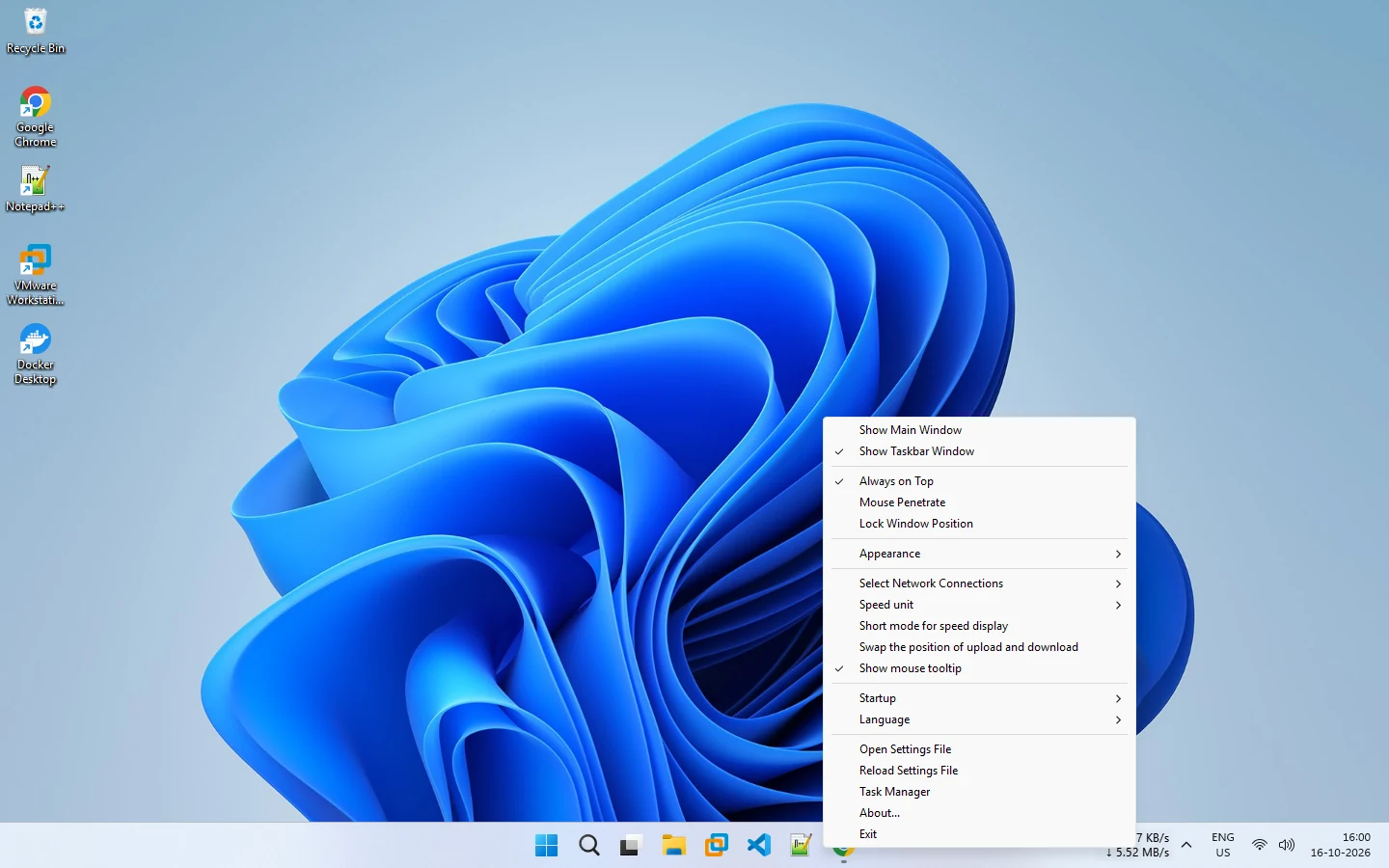
The right-click menu includes Open Settings File and Reload Settings File. They give you direct access to your saved options.
What they are for
- Backing up your setup before a change.
- Moving your configuration to another PC or copy.
- Checking what is saved if something does not behave as expected.
- Advanced edits if you prefer to adjust values in a text editor.
How to use them
- Right-click the tray icon or display.
- Choose Open Settings File. The file opens in your default editor.
- Make a change and save the file.
- Choose Reload Settings File so the program reads it.
Be careful
Editing a settings file by hand can break your setup if you enter values that the program does not expect. Keep a copy before you edit. If something goes wrong, use Reset Appearance for visual options, or replace the file with your backup.
Portable copies
In portable mode, settings can live next to the program, so copying the whole folder copies your setup. See portable mode.
If settings do not save
A protected folder can block saving. See settings not saving and the settings file guide.
Related pages
Configuration
Right-click the speed display or the tray icon to change the font, colors, units, network adapters, startup and language.
Settings not saving
Why NetSpeedDisplay might forget your settings, and what to check.
Published 2026-10-17