
TrafficMonitor Alternative for Windows 11: A Simpler Taskbar Net Speed Meter
Looking for a TrafficMonitor alternative? Compare it with NetSpeedDisplay: a free, native Windows 11 taskbar speed meter with auto-fit, no plugins and no network access.
TrafficMonitor is a well-known free, open-source tool that shows network speed, CPU and memory in a floating window or on the taskbar. People look for a TrafficMonitor alternative when they want something simpler, something that looks like part of Windows 11, or something that never covers taskbar icons. This page compares the two honestly so you can choose.
At a glance
| TrafficMonitor | NetSpeedDisplay | |
|---|---|---|
| Shows | Network speed, CPU, RAM, more with plugins | Download and upload speed only |
| Taskbar look | Customisable skins and colours | Matches the Windows clock by default; optional themed panel |
| Covers taskbar icons? | Position is set by you | Auto-fit: keeps clear of Start, apps, Widgets, tray icons and clock |
| Stays visible when Start opens | Depends on settings and build | Yes, attached to the taskbar |
| Desktop window | Yes | Yes, with its own layout, theme, opacity and text size |
| Graph and history | Traffic history | Dashboard graph (30 s–1 h), daily usage, CSV export |
| Network access | See its own settings and documentation | None; the app makes no network connections |
| Install | Portable ZIP from GitHub | Installer (no admin) or portable ZIP |
| Languages | Several | 22, including right-to-left |
| Price and licence | Free, open source | Free, proprietary freeware |
When TrafficMonitor is the better choice
- You want CPU, RAM or temperatures next to network speed.
- You enjoy skins and plugins and tweaking every detail.
- You prefer open-source software.
When NetSpeedDisplay is the better choice
- You only want download and upload speed, and want it to look like a built-in part of Windows 11.
- You have many tray icons and do not want a meter sitting on top of them. NetSpeedDisplay reads the position of every taskbar button and moves to the nearest free spot.
- You care about privacy: no telemetry, no update check, no internet access at all.
- You want simple settings: one Settings window with six tabs and an Apply button.
- You want the speed in Hindi, Arabic, Japanese or another of 22 languages, with native digits if you like.
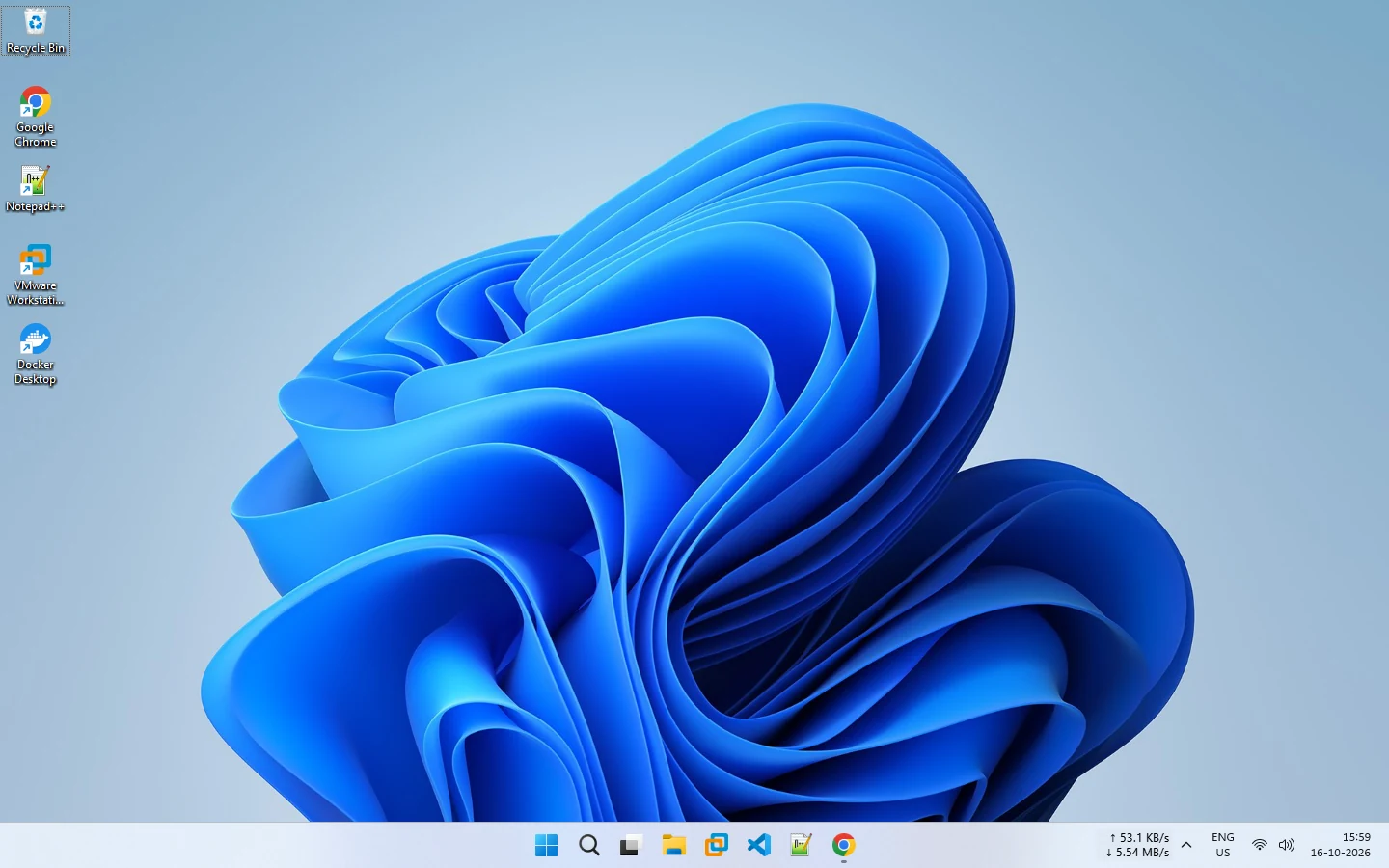
Switching from TrafficMonitor
- Right-click TrafficMonitor, turn off its taskbar window and untick its start-with-Windows option, then exit it. Running two meters wastes space.
- Download NetSpeedDisplay and run the installer (no admin rights needed).
- Tick Start NetSpeedDisplay when I sign in to Windows in setup.
- Want the floating window you had before? Right-click the readout and choose Show speed on the desktop.
- Want a coloured panel instead of the clock style? In Settings → Taskbar, untick Match the Windows taskbar and pick a theme.
Want CPU and RAM too?
NetSpeedDisplay focuses on network speed. For CPU and memory, Task Manager is built in, and our guide shows how to monitor CPU, memory and network together. See also how to check CPU usage and RAM usage.
Frequently asked questions
Is TrafficMonitor safe? It is a widely used open-source project. Download it only from its official GitHub releases page. Windows SmartScreen may warn because it is not from the Microsoft Store.
Does TrafficMonitor work on Windows 11? Yes, current versions support the Windows 11 taskbar.
What is the simplest TrafficMonitor alternative? If you only need upload and download speed, NetSpeedDisplay: install, and the speed appears next to the clock with no setup.
Can I use both? Yes, but there is little point in showing network speed twice. Turn off one of the taskbar readouts.
Related pages
Best Net Speed Meters for Windows 11 and 10 (2026): Taskbar Speed Monitors Compared
Compare taskbar net speed meters for Windows 11 and 10: NetSpeedDisplay, TrafficMonitor, Net Speed Meter (Microsoft Store), NetSpeedMonitor and Task Manager.
NetSpeedMonitor Alternative for Windows 11 (64-bit, Free for Personal Use)
Looking for NetSpeedMonitor on Windows 11? Learn why the old toolbar approach is hard on newer Windows and use NetSpeedDisplay, a free taskbar speed meter, instead.
Net Speed Meter for PC and Laptop: Free Internet Speed Meter for Windows 11 and 10
Free net speed meter for PC and laptop. Show live download and upload speed on the Windows 11 or 10 taskbar. No account, no ads, no admin rights. 2.4 MB download.
How to Show Network Speed on the Windows 11 Taskbar (Net Speed Monitor)
Windows 11 cannot show network speed on the taskbar alone. Add a free net speed monitor for 64-bit Windows 11 with live download and upload speed.
First published 23 November 2026 · Last updated 23 November 2026. Found a mistake or something out of date? Email [email protected] and we will fix it. See how we write and test content.